
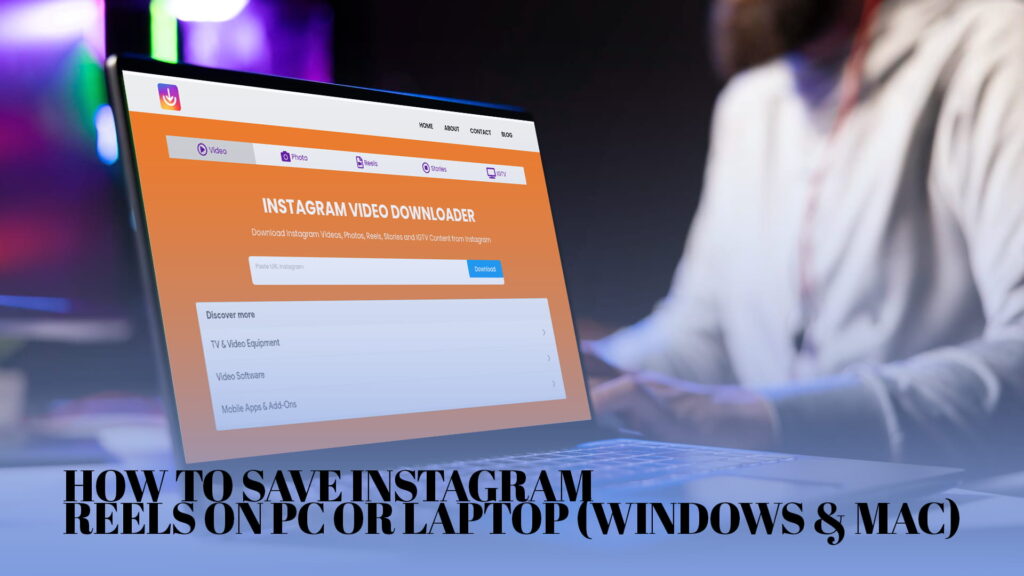
Reels are made for phones, but plenty of the time you’re sitting at a computer when you find one worth keeping. Maybe you’re working, maybe your phone’s across the room, maybe you just want the clip on a bigger screen so you can actually see what’s happening. Either way, you go looking for a download button on the Instagram website and run into the same wall everyone does: it isn’t there.
Instagram doesn’t let you save other people’s Reels to your computer. The desktop site lets you watch and bookmark, nothing more. So if you want the actual video file sitting on your Windows PC or Mac, ready to play offline, drop into a project, or back up somewhere safe, you have to go around the missing button.
That’s what this guide is for. I’ll cover the method that works the same on both Windows and Mac, show you exactly where the file lands on each, and throw in the screen-recording fallback for the rare clip that won’t cooperate. No software to install if you don’t want to, and no Instagram password typed into anything sketchy.
Why Bother Saving Reels to a Computer at All
A few reasons, and they’re more practical than they sound.
Storage is the obvious one. Phones fill up fast, and a folder of saved Reels on a laptop with a real hard drive is a lot easier to live with than the same folder eating your phone’s last few gigabytes. Editing is another. If you’re cutting clips together, building a reference library, or pulling a moment out of a longer Reel, you want those files on the machine where your editor lives, not trapped on your phone behind an export step.
And then there’s the simple matter of organization. Dragging videos into named folders on a desktop is faster than wrestling with mobile albums. If you collect a lot of Reels for inspiration or work, doing it on a computer just makes the whole thing less annoying.
Quick note before we go further, because it matters: only save Reels you have the right to keep. Your own content, clips you’ve been given permission to use, or public videos for personal reference are fine. Reposting someone else’s Reel as your own, or using it commercially without asking, isn’t, and saving the file doesn’t change that.
What You Need
Almost nothing. A Windows PC or a Mac, any modern browser (Chrome, Edge, Safari, Firefox, Brave, they all work), and an internet connection. That’s the entire list. You don’t need to be logged into Instagram on your computer to save a public Reel, you don’t need admin rights, and you don’t need to pay for anything to grab a standard clip.
The one thing that will stop you cold is a private account. If the Reel is on a private profile, none of this works, and that’s intentional.
The Main Method: Copy the Link, Paste It, Download
This is the approach I use because it’s identical on Windows and Mac and it doesn’t ask you to install a thing. Once you’ve done it once, the whole sequence takes maybe twenty seconds.
Step 1: Get the Reel’s link
Open Instagram in your browser and go to the Reel you want. You can do this two ways.
On the Instagram website, click the Reel to open it, then look for the three-dot menu (it’s near the post, sometimes top-right of the video, sometimes just below it depending on the layout). Click it and choose Copy link. The URL is now on your clipboard.
The even simpler way: once the Reel is open in its own view, the link is sitting right there in your browser’s address bar. Click into the address bar, select the whole URL, and copy it with Ctrl+C on Windows or Cmd+C on Mac.
Either method gives you the same thing, a link that ends in something like /reel/ followed by a string of characters. That’s what the downloader needs.
Step 2: Paste the link into a downloader
Open a new browser tab and go to a web-based downloader such as IG DOWN, which handles Instagram Reels, videos, photos, Stories, and IGTV without asking you to log in. Click into the input box, paste your link (Ctrl+V on Windows, Cmd+V on Mac), and hit the download button beside it.
It reads the URL and pulls the Reel back in a couple of seconds, usually showing a preview and a download link underneath. Because it runs in the browser, the experience is the same whether you’re on a Surface laptop, a gaming PC, or a MacBook.
If you want the version that’s built specifically around grabbing Reels quickly without extra steps, the walkthrough on how to download Instagram Reels in seconds trims this down to the bare essentials.
Step 3: Save the file to your computer
Click the download button under the preview. Your browser does the rest and drops an MP4 into your default download location. The Reel is now a real file on your machine. You can double-click it to play in your default video player, drag it into an editor, or move it wherever you keep things.
No watermark stamped across it, no login, no expiry date hanging over it.
Where Does the File Actually Go?
This is where Windows and Mac differ slightly, so let me be specific.
On Windows, downloads land in C:\Users\YourName\Downloads by default. Open File Explorer, click Downloads in the left sidebar, and your Reel is right there at the top, sorted by date. If you’d rather it go somewhere else automatically, you can change your browser’s download folder in settings, or just set the browser to ask you where to save each time.
On Mac, it’s the Downloads folder, reachable from the Finder sidebar or the bouncing Downloads icon in your Dock. Same idea. The MP4 shows up there, and you can drag it into a project folder, into Photos, or onto your desktop.
On both systems I’d suggest making a dedicated folder, something like “Saved Reels,” and moving clips into it as you go. Downloads is a junk drawer for most people, and a Reel buried under three weeks of PDFs and installers is a Reel you’ll never find again.
Getting Clean Reels Without a Watermark
Here’s a detail that catches people out. Some downloaders re-process the video and burn their own logo into it, so you end up with a watermark you never wanted and a file that looks slightly worse than the original.
A good downloader pulls the source video straight through and leaves it untouched, which is what you actually want for anything you plan to keep or reuse. If you’ve been stung by watermarked downloads before, the breakdown of a free Instagram downloader without a watermark explains how to spot the difference so you walk away with the clean file.
A fast sanity check after saving: glance at the file size. A short Reel that comes out as a tiny file has almost certainly been compressed. The same clip at a healthier size is closer to what Instagram actually served.
Picking a Downloader That Won’t Waste Your Time
Not every tool is worth your tab. Some are buried in pop-ups, some break every other week, and some quietly cap quality. On a computer, where you’ve got room to be picky, it’s worth using one that’s stable and quick.
Two things I look for: it loads fast and doesn’t bombard you with redirect ads, and it actually returns the full-quality file rather than a shrunk-down copy. The comparison of the best Instagram downloader for Reels and videos is a useful starting point if you want to settle on one and stop hunting. And if speed and a no-nonsense experience are your priorities, the rundown on an Instagram downloader that’s fast and secure covers what separates the reliable tools from the ones that leave you closing pop-ups for a minute before anything downloads.
Saving Several Reels at Once
If you’re a creator, marketer, or just someone building a reference library, saving Reels one at a time gets old quickly. The browser method still works for batches, you just open the downloader, paste, save, then paste the next one. It’s repetitive but reliable.
A small trick that helps: keep two tabs open, Instagram in one and the downloader in the other, and flip between them. Copy a link, switch tabs, paste, download, switch back. Doing it that way you can clear a dozen Reels in a few minutes without losing your place. For broader needs, browsing the options at a free Instagram downloader online is worth it, since some tools handle queues and bulk saving more gracefully than others.
The Fallback: Screen Recording (Built Into Both Windows and Mac)
Sometimes a link just won’t pull. Usual culprits are a private account, a Reel that got deleted between copying and pasting, or a URL that got mangled on the way over. Re-copy the link cleanly and try again first, because that fixes most failures.
If the Reel is public but a downloader still won’t grab it, you can record your screen, and both operating systems have this built in.
On Windows, press Win + G to open the Game Bar, click the record button (or hit Win + Alt + R), play the Reel full-screen with sound on, then stop the recording. The clip saves to your Videos folder under “Captures.”
On Mac, press Shift + Cmd + 5 to bring up the screen-recording toolbar, choose “Record Selected Portion” so you can box in just the video, hit Record, play the Reel, then stop from the menu bar. By default it lands on your Desktop, and you can trim the ends in QuickTime afterward.
Screen recording is clunkier and the quality is whatever your screen shows rather than the source file, so I treat it as a genuine last resort. But when a downloader chokes on something you’re allowed to keep, it always works.
A Few Habits Worth Picking Up
After saving a lot of these, the small stuff ends up mattering.
Rename files you care about. Downloads come out as video_482910.mp4, which tells you nothing later. Ten seconds of renaming saves a frustrating hunt.
Check the audio before you rely on a clip. Now and then a download saves silent, usually because the original had licensed music that got stripped out. If sound matters for your use, play it back first.
Back up the ones you really want. The whole point of moving Reels to a computer is permanence, so if a clip matters, drop a copy in your cloud storage or an external drive. A file on one laptop is one spilled coffee away from gone.
And keep your folders sane. A computer gives you room to organize properly, so use it. Named folders beat one giant pile every time.
Doing This the Right Way
Worth saying clearly because it genuinely matters. Saving a Reel to your own computer for personal use, keeping your own content, or downloading something you’ve been permitted to use is reasonable. Taking a creator’s Reel and passing it off as yours, or using it commercially without asking, isn’t, and the fact that the file now sits on your hard drive doesn’t make that okay. Instagram’s rules and ordinary copyright still apply once you’ve saved it.
Most people reading this just want to keep a clip they liked or pull their own work off the platform, and that’s exactly the spirit this is meant for.
The Short Version
If you scrolled to the end, here’s the whole thing. Open the Reel in your browser and copy its link, either from the three-dot menu or straight out of the address bar. Paste it into a web downloader. Click download, and the MP4 lands in your Downloads folder, Windows or Mac, ready to play, move, or edit.
That’s all it takes on a computer. The missing download button feels like a roadblock the first time, but once you’ve got a downloader you trust open in a tab, saving Instagram Reels to your PC or laptop turns into a twenty-second habit you barely think about.