
You found a video on Instagram. Maybe it’s a recipe you keep forgetting, a workout clip, a friend’s travel reel, or something funny you want to send your group chat later. So you tap the three dots, hoping for a “Save to phone” button. It isn’t there. Instagram only lets you bookmark the post inside the app, which means the video lives behind a login and disappears the second the account goes private or deletes it.
That gap is the whole reason this guide exists. On Android, you can absolutely get an Instagram video out of the app and into your Gallery (or Google Photos, or your Downloads folder) where it belongs. The file sits on your phone, plays offline, and you can share it anywhere. Below I’ll walk through the fastest method, a couple of backups, and the small details that trip people up, like where the file actually lands and why some downloads come out blurry.
I’ve tested these steps on a few different Android phones, so where behavior changes between brands, I’ll point it out.
Why Instagram Makes This Harder Than It Should Be
Instagram is built to keep you scrolling inside the app, not exporting content out of it. There’s no native download button for other people’s videos, and the in-app “Save” feature is really just a private bookmark. If your connection drops, those saved posts won’t load. If the original poster removes the video, your bookmark goes blank.
So the goal here isn’t to fight the app. It’s to use a downloader that reads the public video URL and hands you the actual MP4 file. That’s the part Instagram leaves out, and it’s the part that gets the video into your Gallery for good.
One thing worth saying up front: only download videos you have the right to keep. Clips you made, content you have permission to use, or videos meant to be shared publicly are fair game. Re-uploading someone else’s work as your own is not, and that’s on you, not the tool.
What You Need Before You Start
Nothing fancy. Any Android phone running a reasonably recent version of Android will do. You’ll want a browser you already use (Chrome, Samsung Internet, Firefox, whatever), the Instagram app or website to grab the link from, and a working internet connection. You do not need to root your phone, sign in with your Instagram password anywhere, or pay for anything to save a standard public video.
If the account is private, none of these methods will work, and that’s by design. Private means private.
The Fastest Method: Copy the Link and Use a Web Downloader
This is the one I reach for, because it works without installing anything and it takes about fifteen seconds once you’ve done it once.
Step 1: Copy the video link inside Instagram
Open Instagram and go to the video you want. Tap the three dots in the top-right corner of the post (on Reels, the dots are on the right-hand action bar). A menu slides up. Tap Copy Link or Copy Share URL. Instagram confirms with a little “Link copied” message at the bottom.
If you’re using Instagram in a mobile browser instead of the app, the link is already in your address bar, so you can copy it straight from there.
Step 2: Paste it into the downloader
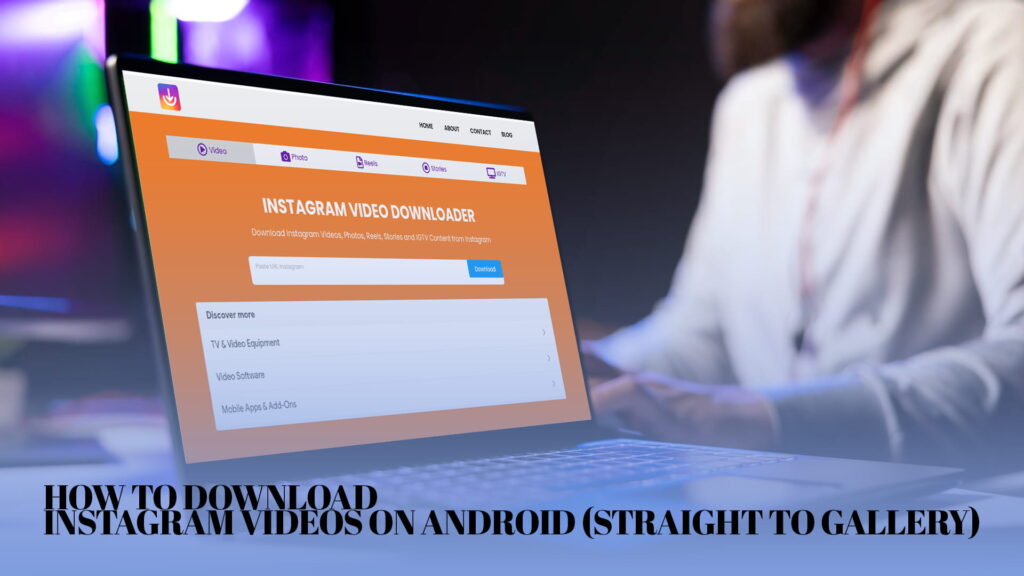
Open a new browser tab and head to a downloader like IG DOWN, which pulls Instagram videos, photos, Reels, Stories, and IGTV clips without making you log in. Paste the link you copied into the box and tap the download button next to it.
The tool reads the URL and pulls back the video in a second or two. You’ll usually see a preview thumbnail and a green download button under it.
Step 3: Save it to your Gallery
Tap Download. Your browser grabs the MP4 and drops it into your phone’s Downloads folder. On most Android phones, that’s enough for the video to show up in your Gallery and in Google Photos automatically, usually under an album called “Download.” If it doesn’t appear right away, give Google Photos a minute to scan for new media, or open your Files app, find the clip in Downloads, and use “Move to” if you want it in a specific album.
That’s it. The video now lives on your phone. No watermark stamped across the middle, no login, no expiry.
If you want a deeper walkthrough with screenshots for both Reels and standard feed videos, the step-by-step on how to download Instagram videos and Reels online covers the same flow in more detail.
Getting Clean Files With No Watermark
Here’s something people don’t realize until they’ve already saved a few clips: some downloaders re-encode the video and slap their own logo on it. You end up with a watermark you never asked for and a slightly fuzzier file.
A good downloader pulls the original quality straight from Instagram’s servers and leaves it alone. That’s what you actually want for a video you plan to keep or re-share. If you’ve ended up with watermarked clips before and hated it, the rundown on how to download Instagram videos and photos without a watermark explains what to look for so you get the raw file instead of a branded copy.
A quick way to check quality before you commit: look at the file size after saving. A 30-second Reel that comes out at a few hundred kilobytes was almost certainly compressed. The same clip at several megabytes is closer to the real thing.
Using an Android App Instead of the Browser
The browser method is great, but if you save Instagram videos all the time, bouncing between the app and a website gets old. This is where a dedicated Android downloader earns its place.
With an app installed, the flow gets shorter. You copy the link in Instagram the same way, switch to the downloader app, and a lot of them detect the copied link automatically and start fetching it the moment you open them. Some even add a share-sheet shortcut, so you can tap Share on the Instagram post, pick the downloader from the list, and skip the copy-paste entirely.
Apps also tend to handle batches better. If you’re saving ten Reels for a mood board, doing that one link at a time in a browser is tedious. A downloader app can queue them up and drop them all into your Gallery together.
If you’re weighing which one to install, the comparison of the best Instagram downloader for Reels and videos breaks down what separates a reliable app from one that’s stuffed with ads and broken half the time. Worth a read before you commit storage to one.
Where Did My Video Actually Go?
This is the question I get more than any other, so let me be specific, because it changes a little by brand.
On most phones, downloaded videos land in Internal Storage > Download, and your Gallery app reads that folder automatically. On Samsung devices, they’ll show up in the Gallery under “Download,” and in Google Photos they appear in a “Download” album once Photos has scanned them. On stock Android (Pixel and similar), open Google Photos, pull down to refresh, and the clip shows up in your main timeline by date.
If a video genuinely won’t appear:
- Open your Files app and search the Downloads folder directly. The file is almost always there even when the Gallery hasn’t caught up.
- Make sure your browser had permission to save files. Android sometimes blocks downloads if storage permission was denied the first time.
- Restart the Gallery or Google Photos app to force a re-scan of the folder.
Nine times out of ten the video downloaded fine and the Gallery just hadn’t refreshed yet.
Saving Reels, Stories, and IGTV the Same Way
The good news is you don’t need a different process for each format. Reels work exactly like feed videos: copy the link, paste, download. The only difference is where you tap to copy, since Reels put the menu on the side rather than the top.
Stories are the odd one out because they vanish after 24 hours, so timing matters. If you want to keep a Story (yours or one you’ve been given permission to save), grab the link while it’s still live, because once it expires there’s nothing left to pull. IGTV and longer videos download the same way, though bigger files naturally take a few seconds longer.
If Reels are mostly what you’re after and you want speed above everything, the guide on how to download Instagram Reels in seconds is built around exactly that use case and trims the process down to the essentials.
A Few Habits That Make This Smoother
After saving a lot of these, a handful of small things end up mattering more than they look.
Save on Wi-Fi when you can. Video files aren’t huge, but a dozen Reels add up, and mobile data is mobile data. If you’re queuing several at once, do it on Wi-Fi.
Rename files you want to keep. Downloads come out with names like video_178294.mp4, which is useless three weeks later when you’re hunting for that one clip. Ten seconds of renaming saves you a frustrating scroll.
Make a dedicated album. Once a video is in your Gallery, move it into a folder like “Saved IG” so it isn’t buried among screenshots. Both Samsung Gallery and Google Photos let you create albums and move files in a couple of taps.
Check the audio. Occasionally a download saves silent, usually because the original had licensed music that got stripped. If sound matters for your use, play the clip back before you rely on it.
When a Downloader Won’t Work (And the Fallback)
Sometimes a link just won’t pull. The usual reasons: the account is private, the post was deleted between copying and pasting, or the URL got mangled when you copied it. Re-copy the link cleanly and try again first, because that fixes most cases.
If the video is public but a downloader still chokes on it, your last resort is screen recording. Every modern Android phone has a built-in screen recorder in the quick-settings panel. Start the recording, play the video full-screen with sound on, stop the recording, then trim the start and end in your Gallery’s editor. It’s clunkier and the quality is whatever your screen shows rather than the source file, but it works on anything you can physically watch. I treat it as a genuine last resort, not a first choice, because the file size balloons and the quality drops.
Doing This the Right Way
It’s worth repeating because it actually matters. Saving a video to your own Gallery for personal use, keeping a copy of your own content, or downloading something you’ve been permitted to use is reasonable. Taking a creator’s video and reposting it as your own, or using it commercially without asking, isn’t, and no tool makes that okay. Instagram’s own rules and basic copyright still apply once the file is on your phone.
Most people reading this just want to keep a clip they like or pull their own content off the platform. That’s the spirit this is meant for.
The Short Version
If you skipped to the bottom, here’s the whole thing in three lines. Copy the video’s link inside Instagram using the three-dot menu. Paste it into a downloader. Tap download, and the MP4 lands in your Downloads folder, which feeds straight into your Gallery and Google Photos.
That’s genuinely all it takes on Android. The first time feels like a workaround; by the third time it’s faster than finding the video again in your saved posts. Once you’ve got a downloader you trust, saving Instagram videos straight to your Gallery stops being a chore and just becomes something you do without thinking about it.