
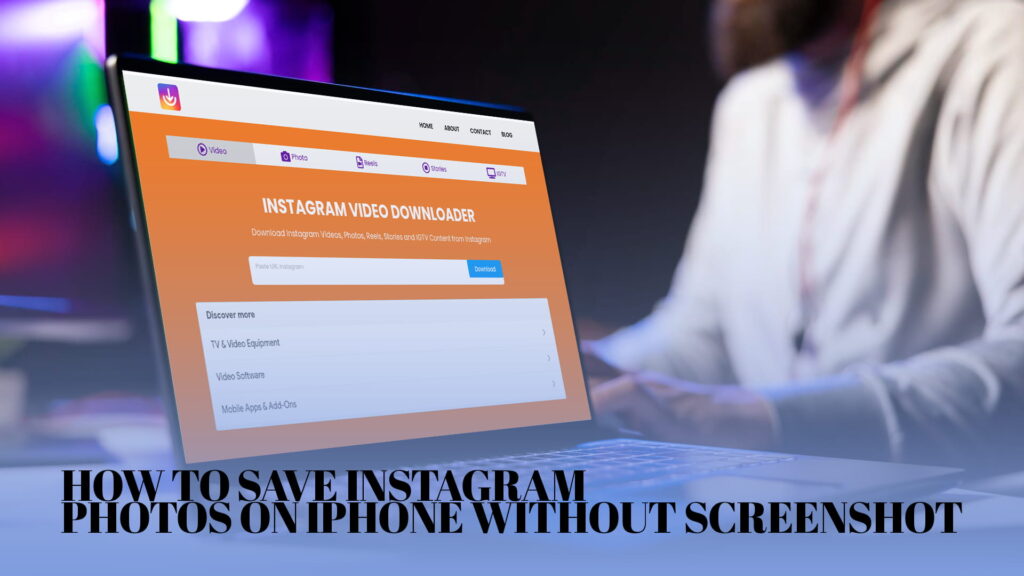
Taking a screenshot to save an Instagram photo is the most obvious thing to do — but it is also the worst. You get a cropped, low-resolution image that includes your status bar, possibly your battery percentage, and none of the original quality the photographer or creator intended. If you are saving food photography for inspiration, repinning content with permission, or just building a personal collection, a screenshot simply does not cut it.
The good news is there are several clean, fast ways to save Instagram photos on iPhone without taking a screenshot. Some require no third-party app at all. Others take about ten seconds with a browser-based tool. This guide covers all of them, from the quickest workarounds to the most reliable methods for regular use.
Why Screenshots Fall Short for Saving Instagram Photos
Before getting into the methods, it helps to understand what you actually lose when you take a screenshot instead of downloading.
Instagram displays photos at a lower resolution to improve feed loading speed. A screenshot captures whatever is currently rendered on your screen — which is already a compressed version of the original. On top of that, iPhone screenshots are cropped to your screen dimensions, adding unnecessary borders and your notification bar unless you crop them manually afterward.
Saved downloads from a proper downloader, on the other hand, pull the image at the highest resolution Instagram makes available — typically the full 1080px wide version for standard posts. That difference matters whether you are saving content for design reference, printing, or your own archive.
There is also the clutter factor. Screenshots pile up in your Camera Roll mixed in with everything else. Downloaded images can be organized into albums. It is a cleaner experience all around.
Method 1: Use IGDown to Save Instagram Photos in Full Quality
The fastest and most reliable method for iPhone users is to use IGDown, a free browser-based Instagram downloader. You do not need to install anything. It works directly in Safari or Chrome on your iPhone.
Here is how it works step by step.
Step 1: Copy the Instagram photo link. Open Instagram on your iPhone and find the photo you want to save. Tap the three-dot menu (•••) in the top right corner of the post. Select “Copy Link” from the options that appear.
Step 2: Open IGDown in your browser. Open Safari and go to igdown.org. The homepage has a single input box where you paste the link.
Step 3: Paste the link and download. Tap the input field, paste your copied link, and hit the download button. IGDown will fetch the photo within a few seconds and present it to you.
Step 4: Save to your Camera Roll. Press and hold the image that appears. A menu will pop up with a “Save to Photos” option. Tap it, and the photo lands in your Camera Roll at full resolution — no screenshot, no watermark, no cropping.
IGDown supports more than just photos. If you want to learn more about everything it handles, the free Instagram video and image downloader online page breaks down the full range of supported content types, including Reels, Stories, and IGTV.
The entire process takes under a minute once you have done it once or twice. For anyone who regularly saves Instagram content for reference or personal use, this is easily the cleanest method available.
Method 2: Use the Instagram “Add to Story” Trick to View Full Image
This method is a workaround rather than a true download, but it can be useful in specific situations. When you tap “Add to Story” on someone else’s public post, Instagram pulls the original post into the Stories editor at a larger render. You can then screenshot from there with marginally better framing, though still not at original quality.
This is worth knowing about, but for actual full-quality saves, Method 1 or the methods below are much better.
Method 3: Safari’s Share Sheet + Files App
If you want to keep everything native to iOS without visiting any external site, you can use Safari’s built-in “Download Linked File” feature. This method works on public Instagram accounts when viewing posts through a web browser.
Step 1: Go to instagram.com in Safari on your iPhone. Browse to the photo you want to save.
Step 2: Press and hold the image until the context menu appears. You will see options including “Save to Photos” and “Download Linked File.”
Step 3: Tap “Save to Photos” if that option is available, or tap “Download Linked File” to save it to your Files app first, then move it to Photos from there.
The catch with this method is that Instagram’s web interface often serves a compressed version of the image, and not all images show the full context menu depending on the account’s privacy settings and Instagram’s current web rendering behavior. For a more consistent experience, IGDown handles all of this behind the scenes automatically.
Method 4: Request Desktop Site in Safari
On iOS, you can force Safari to load the full desktop version of Instagram. This sometimes gives you better access to image links.
Tap the “AA” icon in Safari’s address bar and select “Request Desktop Website.” Instagram will reload as the desktop version. From here, right-clicking (long press on iPhone) an image may give you a “Save Image” option, depending on how Instagram renders it in that session.
Again, results are inconsistent, and Instagram regularly updates its web interface in ways that break this approach. A dedicated downloader like IGDown is more stable for regular use.
Method 5: Save Your Own Instagram Posts
If the photo belongs to your own account, the process is simpler. Instagram has a built-in option to download your own content.
Go to any of your posts, tap the three-dot menu (•••), and select “Download.” Instagram will save the photo directly to your Camera Roll. This only works for your own posts, not anyone else’s.
For saving your own archive in bulk, Instagram also has a “Download Your Data” feature under Settings. Go to Settings → Your Activity → Download Your Information and request a data export. Instagram will send you an email with a download link when the archive is ready. The archive includes photos, videos, messages, and more in a zip file.
Method 6: Use IGDown for Instagram Stories Before They Disappear
Stories are a separate use case that deserves its own mention. Instagram Stories disappear after 24 hours, and unlike regular posts, there is no native way to save someone else’s Story — not even a clunky workaround through the share sheet.
IGDown handles Stories the same way it handles photo posts. Copy the Story link from the direct Story view, paste it into IGDown, and download before the 24-hour window closes.
For a deeper look at downloading Reels (which are increasingly replacing Stories as the short-form content format), the download Instagram Reels in seconds guide walks through the process specifically for that content type.
Getting Full-Quality Images Every Time: What to Know
There is a persistent myth that Instagram destroys image quality so badly that no download tool can recover the original. The reality is more nuanced.
Instagram does compress uploads, but it stores a reasonably high-quality version for display purposes. What tools like IGDown retrieve is that stored display version — not the original raw file the creator uploaded, but meaningfully better than a screenshot. For most practical purposes (reference collection, personal archives, design inspiration boards), the quality is more than good enough.
Instagram’s compression is most noticeable on images that were already highly compressed before upload. If you upload a 4K image, Instagram will scale it down to 1080px. IGDown will retrieve that 1080px version. A screenshot of that same post will likely give you something closer to 750-900px depending on your iPhone model, with additional quality loss from the screenshot render.
If maximum quality matters for your use case — professional archiving, printing, licensed content with permission — always go to the source creator directly for the original file.
A Note on Downloading Instagram Content Responsibly
Saving photos for personal use — references, collections, inspiration boards, mood boards — is how most people use tools like these. That is a reasonable use of content that is publicly posted.
Reposting someone else’s content as your own, using downloaded photos commercially without permission, or misrepresenting authorship are different matters. Instagram’s Terms of Service restrict downloading content for use outside the platform, and copyright law protects the creators of that content regardless of whether it is publicly visible.
If you want to share something you saved, tag the original creator, ask for permission, or simply link back to their post rather than re-uploading the image. Most creators appreciate the credit.
IGDown provides a privacy policy and disclaimer that are worth reading if you plan to use the tool regularly. The site does not store your data or the content you download.
Comparing the Methods: Which One Should You Use?
If you just want a quick answer, here it is.
For saving a single photo from a public account right now, IGDown is the fastest method. Open Safari, go to igdown.org, paste the link, save. Done. It takes about 30 seconds once you know the flow.
If you need to save your own posts, use Instagram’s built-in download feature or request a full data export.
If you want to save Stories before they expire, IGDown is currently the only reliable option for iPhone users without installing a dedicated app.
If you want to save multiple photos from a carousel post, IGDown handles multi-image posts and presents all images in the set for individual download.
For anyone who finds themselves saving Instagram content regularly, it is worth bookmarking igdown.org or adding it to your iPhone’s Home Screen via Safari’s “Add to Home Screen” option in the share sheet. That way it behaves almost like a native app — one tap and you are in.
How to Add IGDown to Your iPhone Home Screen
This is a small quality-of-life tip that makes a real difference if you use the tool often.
Open Safari and go to igdown.org. Tap the Share button (the box with an arrow pointing up) at the bottom of the screen. Scroll through the options and tap “Add to Home Screen.” Give it a name — “IG Downloader” or just “IGDown” — and tap Add.
The site will now appear as an icon on your Home Screen. On iPhone, it opens in a full-screen browser view without the Safari address bar, which makes the paste-and-download experience feel much cleaner than navigating to a site each time.
Saving Instagram Photos on iPhone: The Short Version
Screenshots are a poor substitute for a proper download. They lose resolution, include screen elements, and clutter your Camera Roll. The better options are all accessible directly from Safari on your iPhone.
For public posts — photos, Reels, Stories, carousels, IGTV — IGDown handles everything in a few seconds from a browser. No app install, no account required, no watermark on the saved image.
For your own posts, Instagram’s built-in “Download” option or the full data export covers everything you have personally uploaded.
The tools are there. Once you do it once, you will not go back to screenshots.