
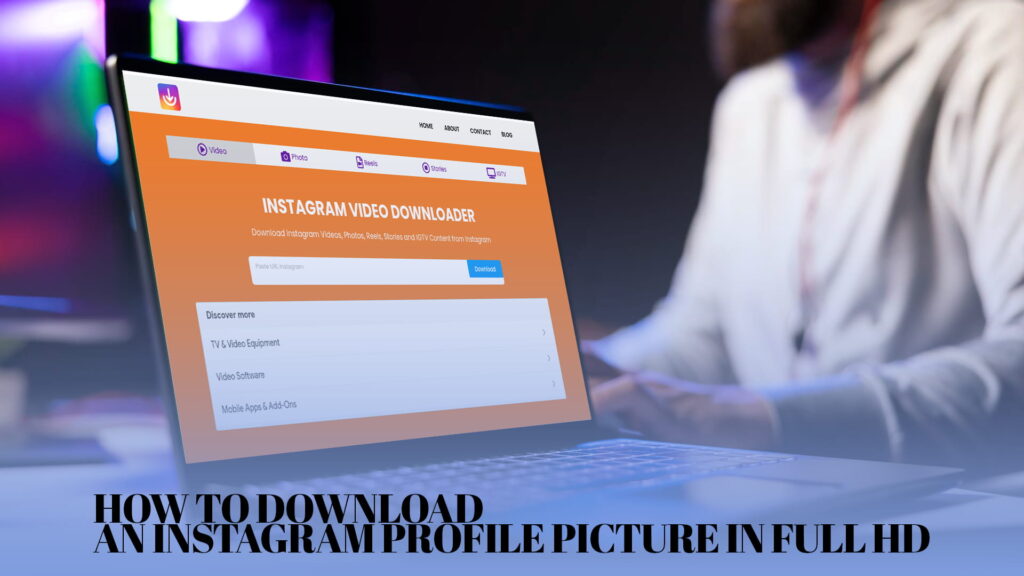
Instagram shows profile pictures as tiny circles. On a phone, someone’s profile photo is barely bigger than a coin, cropped into a circle, and there’s no way to tap it and see it larger. Try to save it and you’ll find there’s no option at all. Instagram simply doesn’t let you open, enlarge, or download anyone’s profile picture, including, half the time, your own.
That’s a problem when you actually need the image. Maybe you want to set a proper contact photo for a friend so their face fills the screen when they call. Maybe you’re a designer who needs a clean copy of a client’s logo that lives as their profile picture. Maybe you just want to see a photo properly instead of squinting at a thumbnail. Whatever the reason, the tiny circle in the app is useless for it.
The good news is you can pull a much larger, clearer version of almost any public profile picture, and it takes about fifteen seconds. The slightly less good news is that “Full HD” needs a small reality check, which I’ll get to honestly rather than pretending every profile photo comes out at 1080p. Let me walk through how it works, what quality to actually expect, and where the file lands.
Why the Profile Picture Is So Hard to Get
Instagram treats profile pictures differently from regular posts. A normal photo you can at least view full-screen. A profile picture is locked into that little circular frame, displayed at a low resolution meant for a thumbnail, with no tap-to-expand and no save button anywhere in the menu.
Screenshotting doesn’t help either. If you screenshot the profile, all you capture is that same small circle sitting on the page, surrounded by the rest of the interface. Crop it down and you’re left with a blurry, low-resolution image that looks worse the moment you enlarge it. The picture you see in the app just isn’t served at a size worth saving.
So getting a usable copy means going around the app entirely and asking Instagram’s servers for the largest version of that image they’ll hand over. That’s exactly what a profile picture downloader does, and it’s why the result looks dramatically better than anything you could screenshot.
A Straight Answer About “Full HD”
Let me be honest with you, because a lot of pages on this topic aren’t. Instagram doesn’t store every profile picture at true Full HD (1920 by 1080). What you can retrieve is the highest-resolution version Instagram makes publicly available for that account, which is far larger and sharper than the circle you see in the app, but the exact pixel size depends on what the person originally uploaded and how Instagram processed it.
In practice, that means the download is a big step up from the thumbnail, usually clear enough to use as a contact photo, a reference image, or a clean copy of a logo. For accounts that uploaded a high-quality image to begin with, you’ll get something genuinely crisp. For accounts that uploaded a small or old photo, the best available version will be more modest, because you can’t pull detail that was never there.
So treat “Full HD” as shorthand for “the largest, clearest version Instagram will give you,” not a guarantee of a specific resolution. That’s the honest version, and it saves you from being disappointed when a decade-old profile photo comes back smaller than you hoped.
What You Need
Not much at all. Any phone or computer, a browser you already use, and an internet connection. You don’t need to install an app, you don’t need to log into Instagram anywhere, and you don’t need to pay to grab a standard public profile picture.
The one hard limit, as always, is a private account. If the profile is private and you don’t follow it, you can’t access its picture at all. Even when you do follow a private account, some tools won’t pull the image, because it isn’t served publicly. Public accounts are where this works cleanly.
The Main Method: Paste the Username, Download the Picture
This is the fastest route and it works the same on a phone or a computer.
Step 1: Get the username or profile link
Open Instagram and go to the profile whose picture you want. You need either the account’s username (the @handle, without the @ symbol) or the link to their profile. To copy the profile link in the app, tap the three-dot or hamburger menu on their profile and choose Copy Profile URL, or in a browser just copy the address from the bar. The username alone is usually enough.
Step 2: Paste it into a downloader
Open a downloader like IG DOWN, which pulls Instagram profile pictures, photos, videos, Reels, Stories, and IGTV content without asking you to log in. Paste the username or profile link into the box and run it. The tool looks up the account and fetches the full-size version of that profile picture, usually showing you a preview so you can confirm it’s the right one before saving.
Because it reads the publicly available image directly from Instagram, what comes back is the real file, not a screenshot of a thumbnail. If you want a tool that’s specifically good at pulling from a whole profile, the option built around downloading from a profile and Reels online is a natural fit here, since the profile picture is part of the same lookup.
Step 3: Save the image
Tap or click download. On a phone the image saves to your photos or Downloads folder depending on your device, and on a computer it lands in your Downloads folder as a standard image file, usually a JPG. From there you can set it as a contact photo, drop it into a design, or keep it as reference. That’s the whole process.
Downloading Your Own Profile Picture
People forget this one: getting a clean copy of your own profile picture is a common need, especially if you uploaded it years ago and no longer have the original file on your phone. The same method works. Paste your own username, and the tool returns the version Instagram is serving, which is often the only surviving high-quality copy if you’ve since changed phones.
It’s worth keeping a proper copy of your own profile photo somewhere safe anyway. Phones get replaced, camera rolls get wiped, and the version living on Instagram might be the last full copy you have. Pull it down and back it up. If you’d rather use something oriented around saving images cleanly, a free Instagram video and photo downloader online handles profile pictures alongside regular photos.
Getting a Clean File Without a Watermark
Same warning that applies to any Instagram download: some tools re-process the image and stamp their own logo onto it. For a profile picture you plan to use as a contact photo or in a design, a watermark ruins it. A good downloader hands back the clean original with nothing added.
If clean files matter to you, the rundown on a free Instagram downloader without a watermark explains how to tell the clean tools from the ones that brand everything they touch. It’s a quick check: if the downloaded picture has a logo tucked in a corner, switch tools.
What You Can Actually Use It For
Plenty of ordinary things. Setting a real contact photo so a friend’s face fills your screen on a call is the most common one, and it works far better with a proper download than a cropped screenshot. Designers and social media managers often need a clean copy of a client’s logo or headshot that lives as the profile picture. Some people save a copy to identify an account, confirm they’re following the right person, or keep a record. And, as covered, keeping a backup of your own picture is just sensible.
If you’re curious about the wider range of what a downloader like this handles beyond profile pictures, the overview of IG DOWN as an all-round Instagram downloader lays out the other content types it pulls, since most people who want one thing end up wanting the others too.
Phone or Computer: It Barely Matters
One nice thing about the paste-the-username approach is that it doesn’t care what device you’re on. On a phone, you copy the handle from the app and paste it into the downloader in your mobile browser. On a computer, you copy it from the website and paste it into the same tool in Chrome, Edge, Safari, or Firefox. The lookup and the result are identical.
If you’re doing anything with the image afterward, though, a computer is often the easier place to work. Files land in a Downloads folder you can actually navigate, it’s simpler to rename and sort them, and if you’re dropping the picture into a design or a contacts system, that usually lives on the computer anyway. For a one-off contact photo, your phone is perfectly fine. For anything involving a batch of accounts or design work, the desktop is less fiddly. Since the same tool works on both, you can just use whichever screen you’re sitting at.
A Word on Those “HD Profile Picture” Apps
Search this topic and you’ll find a pile of apps promising “HD Instagram DP downloads,” and most of them aren’t worth installing. A browser-based tool does the same job without asking for storage space, permissions, or, in the worst cases, your Instagram login. That last one is the red flag to watch for: no legitimate profile picture downloader needs you to sign in with your Instagram credentials, and any that demands it is fishing for your account.
The rule of thumb is simple. If a tool asks for your Instagram password to show you a public profile picture, close it. Public images are public, and pulling one never requires handing over your login. Stick to tools that work from a pasted username with no sign-in, and you avoid the whole category of credential-harvesting junk.
Doing This the Right Way
A profile picture is still someone’s image, so a word on using it decently. Saving a public profile picture to set as a contact photo, for design work you have permission for, or to keep a backup of your own is entirely reasonable. Using someone’s profile picture to impersonate them, set up a fake account, or misrepresent who you are is not, and in a lot of places it crosses from rude into genuinely illegal.
The image being publicly visible doesn’t make every use of it fair. Contact photos, backups, and legitimate work are fine. Impersonation and deception are not. Keep it on the right side of that and there’s no issue here.
A Few Tips Worth Knowing
Confirm the account is public before you expect a result, since private profiles won’t hand over their picture. Check the preview matches the account you meant, because common usernames can be easy to mix up. Rename the file after saving if you’re keeping several, because a folder full of images named profile.jpg, profile(1).jpg, and profile(2).jpg becomes useless fast. And set your expectations by the source: a recent, high-quality upload comes back crisp, while an old low-resolution photo can only ever come back as good as it originally was.
One more practical note. If you’re setting the image as a contact photo, most phones let you reposition and crop after you import it, so don’t worry if the download comes as a square. You can frame it however you like once it’s in your contacts.
The Short Version
If you scrolled to the end, here it is. Instagram won’t let you save profile pictures, and screenshots only capture the tiny circle. To get a proper copy, take the account’s username or profile link, paste it into a downloader, and save the full-size version it returns. It works for other people’s public pictures and for your own, and it’s the same quick process on a phone or a computer. Just keep your expectations honest, since “Full HD” really means the largest, clearest version Instagram will serve, which depends on what was originally uploaded.
Once you’ve got a downloader you trust bookmarked, pulling a clean, usable profile picture stops being impossible and becomes a fifteen-second job.