
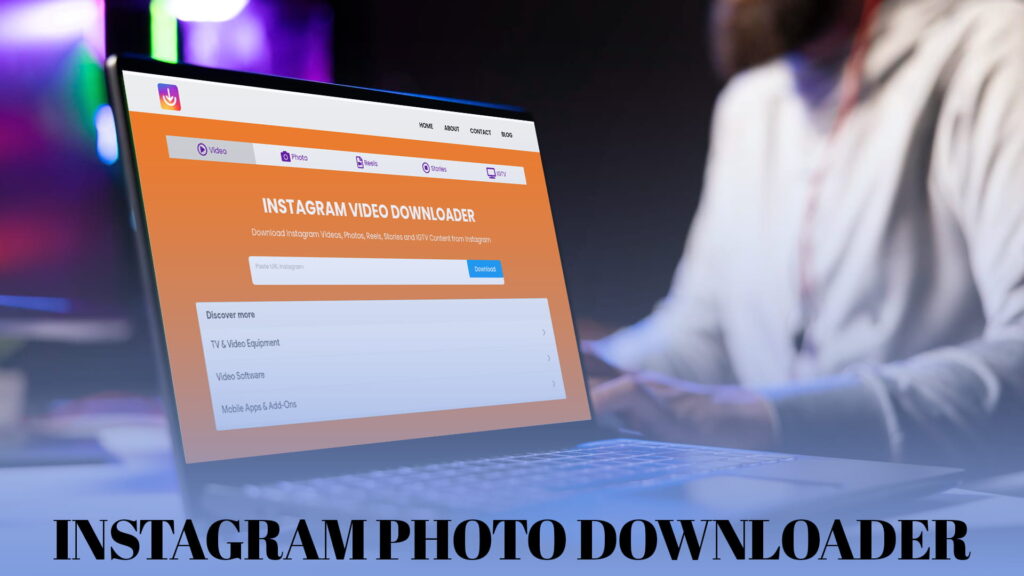
Instagram is a photo platform that won’t let you keep photos. You can look at an image for as long as you like, zoom in, double-tap it, but there’s no save button anywhere in the menu. Instagram’s own “Save” option only bookmarks the post inside the app, where it stays tied to your login, refuses to load without a connection, and disappears entirely if the account goes private or the post gets deleted. You never actually get the picture.
An Instagram photo downloader closes that gap. It takes the link to a post and hands you back the real image file, a JPG you can open offline, keep permanently, print, edit, or send to anyone. No screenshots, no cropping, no quality loss. Whether you want to back up your own photos, keep a reference image, or save something before it vanishes, this is the tool that does it. Here’s how it works, what it can pull, and how to get clean, full-size files every time.
Why Screenshots Aren’t Good Enough
Most people’s first instinct is to screenshot, and it’s worth explaining why that’s a poor substitute, because it’s the habit this tool replaces.
A screenshot captures your screen, not the source image. That means you get whatever resolution your display was showing, which is almost always smaller than the photo Instagram actually stored. Enlarge it later and it falls apart. Worse, a screenshot includes everything else on screen: the username bar, the like and comment icons, the caption, the status bar with your battery and signal. You then have to crop all of that out by hand, and cropping throws away even more pixels.
The end result is a small, soft, awkwardly framed version of a photo that exists somewhere in much better quality. A downloader skips all of that by fetching the actual file. What you get is the image as it was uploaded, clean edges, full resolution, nothing extra.
What an Instagram Photo Downloader Actually Does
The mechanism is simple. You give it the link to a public post, it reads that link, pulls the image directly from Instagram’s servers, and returns the file to you. Because it works from the public URL rather than the app’s interface, there’s no screen capture involved and no interface clutter to remove.
A good one handles more than single photos, too. Carousel posts, the ones you swipe through with multiple slides, come back as separate files for every slide rather than forcing you to save them one at a time. Profile pictures, which Instagram displays as a tiny circle with no way to enlarge, can be pulled at a far larger size. And the same tool usually covers videos and Reels, so you’re not switching tools when the content type changes.
How to Download an Instagram Photo
The whole process takes about fifteen seconds once you’ve done it, and it works the same way regardless of what device you’re holding.
Step 1: Copy the post’s link
Open Instagram and go to the photo you want. Tap the three-dot menu at the top-right of the post and choose Copy Link. Instagram flashes a brief “Link copied” confirmation. If you’re browsing Instagram in a web browser rather than the app, the link is already sitting in your address bar and you can copy it straight from there.
For a carousel, you only need to copy the link once. That single URL represents the entire post including every slide, so there’s no need to link each image separately.
Step 2: Paste it into the downloader
Open a IG DOWN, which handles Instagram photos, videos, Reels, Stories, and IGTV content without asking you to log in. Paste the link into the box and run it. Within a second or two it reads the post and pulls back the image, usually showing a preview so you can confirm you’ve got the right one before saving.
If the post is a carousel, the tool should return every slide, so it’s worth glancing at the count before you move on. Since many posts mix images and clips, a tool built as a free Instagram video and photo downloader online is the practical choice, because it copes with whichever format the post turns out to contain.
Step 3: Save the file
Tap or click download, and the image saves to your device. On Android and on computers it lands in your Downloads folder and appears in your gallery or file browser. On an iPhone, browser downloads go to the Files app first, and you save the photo into your Camera Roll from there with one extra tap. Either way, you now have the actual picture rather than a capture of your screen.
Full Quality, No Watermark
Two things separate a good photo downloader from a bad one, and both are worth checking on your first download.
The first is watermarking. Some tools re-process the image and stamp their own logo onto it, which ruins the photo for any real use, and across a multi-slide carousel it means every single image comes back branded. A proper downloader hands the file back untouched. If clean output matters to you, the rundown on how to download Instagram videos and photos without a watermark explains how to tell the clean tools from the ones that brand everything they touch.
The second is compression. Weaker tools shrink the file to save bandwidth, and you lose the quality that made you want the photo in the first place. A quick way to check both at once: open the saved image at full size and compare it against the post. If it looks softer than it did on screen, or there’s a logo tucked into a corner, the tool compressed and stamped it, and it’s worth switching to a cleaner one.
What Quality to Expect
An honest note, because a lot of pages on this topic over-promise. A downloader returns the file Instagram is serving, so the quality depends mostly on what the person originally uploaded. A recent post shot on a decent phone comes back sharp. A photo uploaded years ago, or one that was already compressed before it went up, can only come back as good as it started, because no tool invents detail that was never captured.
What a good downloader guarantees is that it won’t make things worse. It won’t re-encode, won’t shrink the resolution, won’t add anything. So the quality equation has two parts: the original upload, which is out of your hands, and whether your tool leaves that file alone, which is entirely in your hands. Pick a clean downloader and you always get the best version available, which is invariably far better than a screenshot.
Works on Every Device
One of the main reasons to use a browser-based tool rather than an app is that it doesn’t care what you’re on. The same downloader works on Android, iPhone and iPad, Windows, and Mac, because it runs in the browser you already have. Nothing to install, nothing to keep updated, no storage given up.
The only real difference is where files land. Android and desktop systems drop downloads into a Downloads folder that your gallery or file browser reads automatically. iPhone routes browser downloads through the Files app, adding the one extra tap to move the image into Photos. The fetch itself is identical everywhere.
For anything involving several images, a computer is often the easier place to work. Renaming, sorting, and filing a dozen photos is far quicker with a mouse and a proper folder structure than by thumb on a phone, where they scatter through your camera roll. For a single save, your phone is perfectly fine.
Photos, Carousels, and Profile Pictures
The range of what you can pull is wider than most people expect.
Single photos are the obvious case. Carousels are where a downloader really earns its place, since saving a ten-slide post by hand means ten screenshots and ten crops, while a downloader returns all ten files from one pasted link. Profile pictures are the other hidden win: Instagram shows them as a small circle with no way to enlarge or save, so pulling a full-size copy is genuinely impossible without a tool. That’s useful for setting a proper contact photo or keeping a clean copy of your own picture.
If you regularly need images from across a whole account rather than one post at a time, a tool oriented around pulling from a profile and Reels online covers profile pictures alongside regular posts in the same lookup.
The one consistent limit is privacy. A photo on a private account you don’t follow can’t be accessed, and no honest tool changes that. Public content is where a photo downloader works cleanly.
What People Use It For
The reasons are ordinary and practical. Backing up your own photos is the big one, especially if you’ve switched phones since posting and the originals are long gone from your camera roll. Instagram might be holding the only surviving copy of an image you care about, and pulling it down is cheap insurance.
Beyond that, people save reference images for design work or mood boards, keep product shots for research, save recipes and infographics they want to actually read later, and hold onto pictures friends posted before those posts disappear. Anyone building a collection of visual inspiration ends up needing clean files rather than a folder of cropped screenshots.
Offline access matters too. A saved photo opens on a plane or anywhere with no signal, while a bookmarked Instagram post just shows a blank space.
Why an Online Tool Beats an App
You could install an app for this, but for most people a browser-based tool is the better call, and the reasons stack up. There’s nothing to install, so you keep your storage and don’t hand over permissions. It works across all your devices from a single bookmark. It’s free for standard public posts. And a good one never asks you to log into Instagram.
That last point deserves emphasis. No legitimate photo downloader needs your Instagram password to save a public image. Any tool demanding you sign in with your Instagram credentials is fishing for your account rather than helping you, and that’s how accounts get stolen. Stick to tools that work from a pasted link with no sign-in and you avoid that entire category of junk. Browsing a reliable free Instagram downloader online is worth the few minutes if you want to settle on one and stop hunting.
Choosing One Worth Using
The good tools share a handful of traits. They load fast without burying you in pop-ups and redirects. They return the full-quality file rather than a shrunken copy. They don’t stamp watermarks on your images. They never ask for a login. And they handle carousels properly, returning every slide rather than just the first.
The bad ones fail on at least one of those, and you can usually tell within seconds of arriving. Speed matters more than it sounds, because a slow, ad-heavy site turns a fifteen-second job into a minute of closing pop-ups. Once you’ve found one that ticks the boxes, bookmark it.
A Few Practical Habits
Small things that make this smoother over time. Rename the files you’re keeping, because a folder full of image1.jpg and image(2).jpg is useless three weeks later when you’re hunting for one specific picture. Make folders for sets, particularly for carousels, so a twenty-slide post doesn’t scatter across your camera roll.
Check the slide count on carousels before you move on, since the most common complaint is discovering later that only the first image came down. And back up anything that genuinely matters to cloud storage or a drive, because the whole point of downloading is permanence, and a file on one device is one accident away from gone.
If a link won’t pull, the usual causes are a private account, a deleted post, or a link that got mangled when you copied it. Re-copy it cleanly and try again first, since that resolves most failures.
Doing This the Right Way
Worth saying plainly. Saving a public photo for personal reference, keeping your own posts, or downloading images you’ve been given permission to use is reasonable. Taking someone’s photo and reposting it as your own, or using it commercially without asking, isn’t, and downloading the file doesn’t change who made it. Photographers and creators own their images, and the fact that a picture is publicly visible doesn’t make every use of it fair.
Instagram’s rules and ordinary copyright still apply once an image is on your device. Most people using a photo downloader are backing up their own content or keeping something for personal reference, and that’s exactly what the tool is for.
The Short Version
If you scrolled to the end, here’s the whole thing. Instagram gives you no way to save photos, and its bookmark only keeps a link inside the app while screenshots cost you resolution and leave interface clutter behind. An Instagram photo downloader fixes that: copy the post’s link, paste it into the tool, and download the actual image file at full quality with no watermark and no login. It handles single photos, entire carousels in one go, and profile pictures Instagram otherwise hides behind a tiny circle, and it works the same on Android, iPhone, Windows, and Mac.
Once you’ve got a downloader you trust bookmarked, saving any Instagram photo stops being a screenshot-and-crop chore and becomes a fifteen-second habit.