
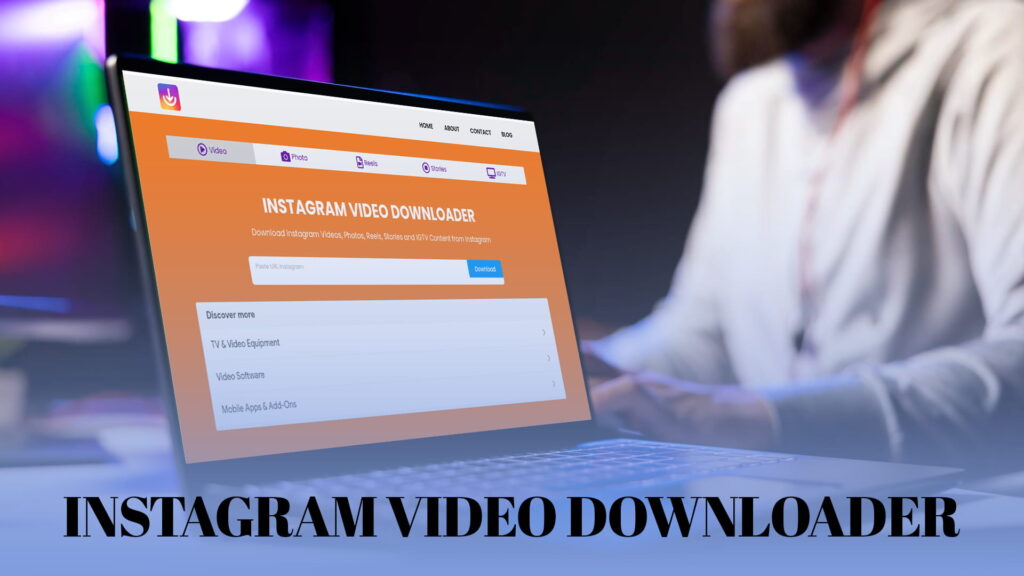
Instagram is built for watching, not keeping. You can scroll past a hundred videos in a sitting, but the moment you want to actually save one to your phone or computer, there’s no button for it. Instagram’s own “Save” only bookmarks the post inside the app, where it stays behind your login, won’t play offline, and disappears if the account goes private or deletes the video. That gap is exactly what an Instagram video downloader fills.
An Instagram video downloader is a simple tool that takes the link to a video and hands you back the actual file, an MP4 you can play offline, keep forever, and share anywhere. No screen recording, no quality loss, no wrestling with the app. If you’ve ever wanted to save a clip for later, back up your own content, or keep a video that might vanish, this is the tool that does it, and this page walks through how it works, what it can grab, and how to use one well.
What an Instagram Video Downloader Actually Does
At its core, the job is straightforward. You give it a public video’s link, it reads that link, pulls the video straight from Instagram’s servers, and returns the file to you. Because it works from the public URL rather than the app’s interface, you get the real video at its original quality, not a compressed screen capture.
A good one isn’t limited to standard feed videos either. The same tool typically handles Reels, IGTV and longer clips, and the video parts of Stories, so whatever form the video takes on Instagram, you can save it. The point of a proper IG video download is that it doesn’t care what section of the app the video lives in, it just fetches the file.
How to Save an Instagram Video
The whole process takes about fifteen seconds once you’ve done it once, and it’s the same idea on any device.
Step 1: Copy the video link
Open Instagram and go to the video you want. Tap the three-dot menu at the top of the post (on Reels, the menu sits on the right-hand side), then tap Copy Link. Instagram flashes a small “Link copied” confirmation. If you’re browsing Instagram in a web browser instead of the app, the link is already sitting in your address bar, so you can copy it from there.
Step 2: Paste it into the downloader
Open IG DOWN, which handles Instagram videos, photos, Reels, Stories, and IGTV without asking you to log in. Paste the link into the box and run it. It reads the URL and, within a second or two, pulls back the video, usually with a preview and a download button underneath. This is the whole of an Instagram video download online: paste, and the tool does the fetching.
Step 3: Download the file
Tap the download button, and the MP4 saves to your device. On a phone it lands in your photos or Downloads folder depending on your system, and on a computer it drops into your Downloads folder. From there you can play it, edit it, or send it on. That’s it, the video is now yours to keep, offline and free of the app.
If you want a fuller walkthrough that covers both videos and Reels with the same flow, the guide on how to download Instagram videos and Reels online breaks it down step by step.
Works on Every Device
One of the reasons an online downloader beats an app is that it doesn’t care what you’re using. The same web tool works on an Android phone, an iPhone or iPad, a Windows PC, and a Mac, because it runs in the browser you already have. There’s nothing to install and nothing to keep updated.
The small differences are only in where the file lands. On Android and most computers, the video drops straight into your Downloads folder and shows up in your gallery. On iPhone, browser downloads go to the Files app first, and you save the video into your Camera Roll from there with one extra tap. Either way the download itself is identical, and the tool behaves the same across all of them. Being able to save Instagram video from whatever screen you happen to be at is half the appeal.
Full Quality, No Watermark
Here’s a detail that separates a good downloader from a bad one. Some tools re-encode the video and stamp their own logo across it, so you end up with a watermark you never asked for and a file that looks slightly worse than the original. A proper downloader pulls the source video untouched and hands it back clean, at the quality Instagram actually served.
That matters whether you’re keeping a clip for yourself or planning to reuse your own content. If clean output is a priority, the rundown on an Instagram video downloader without a watermark explains how to tell the clean tools from the ones that brand everything. A fast check after saving: if the video looks softer than it did on screen or carries a logo in the corner, the tool compressed and stamped it, and it’s worth switching.
Why Use an Online Downloader Instead of an App
You could install an app for this, but for most people a browser-based tool is the better choice, and the reasons stack up. There’s nothing to download, so you’re not giving up storage or granting permissions. It works across all your devices with one bookmark. It’s free for standard public videos. And crucially, a good one never asks you to log into Instagram, which keeps your account credentials out of it entirely.
That last point is worth dwelling on. No legitimate video downloader needs your Instagram password to save a public video. Any tool that demands you sign in with your Instagram login is fishing for your account, not helping you. Stick to tools that work from a pasted link with no sign-in, and you sidestep the whole category of credential-harvesting junk. A no-login tool that works this way covers the full range of Instagram content anyway, since people who want to save one video usually end up wanting photos and Reels too.
What You Can Save
The range is wider than people expect. Standard feed videos are the obvious one. Reels, which have largely taken over short-form video on the platform, save the same way. IGTV and longer videos work too, just with slightly bigger files. The video portions of Stories can be pulled while they’re still live. And because a full downloader handles more than video, you can grab photos and carousels from the same tool when you need them. A free Instagram video and photo downloader online covers both formats, so you’re not hunting for a separate tool every time the content type changes.
The one consistent limit across all of these is privacy. If a video is on a private account you don’t follow, you can’t access it, and no honest tool gets around that. Public content is where an Instagram video downloader works cleanly.
What People Actually Use It For
The reasons are more ordinary than you might think. Offline viewing tops the list: a saved video plays on a flight, on the subway, or anywhere with no signal, while a bookmarked post just spins. Backing up your own content is another big one, since creators lose access to old posts all the time when they switch phones or an account gets locked. People save tutorials and how-to clips so they can follow along without hunting for the video again. Marketers and editors pull reference footage. And plenty of people just want to keep something they liked before it disappears.
None of these need explaining to anyone who’s tried to find a video they saw last week and couldn’t. Having the file means never losing it.
What Determines the Quality You Get
A fair question is how good the downloaded video will actually look, and the honest answer is that it depends mostly on the source. A downloader returns the file Instagram is serving, so if the creator uploaded a crisp, high-resolution video, that’s what you get back. If they posted something already compressed or shot on an old phone, the download can only be as good as the original, because no tool adds detail that was never there.
What a good downloader guarantees is that it doesn’t make things worse. It won’t re-compress the file, shrink the resolution, or stamp a logo on top, all of which are the sins of weaker tools. So the quality question really comes down to two things: the quality of the original upload, which you can’t control, and whether your downloader leaves that file alone, which you can. Pick a clean tool and you’ll always get the best version available. The file size is a quick tell here, since a suspiciously tiny file for a long clip usually means it was compressed on the way down.
Saving Videos You Might Otherwise Lose
One use worth calling out on its own is preservation. Instagram content is surprisingly fragile. Accounts get deleted, posts get taken down, profiles flip to private, and creators wipe old content when they rebrand. A video you assumed would always be there can be gone overnight, and Instagram’s bookmark won’t save you, since it only points at a post that no longer exists.
Downloading the file is the only real way to keep something safe. If a clip genuinely matters to you, whether it’s your own work, a friend’s moment, or a tutorial you rely on, the responsible move is to pull it down and back it up rather than trusting it’ll still be on the platform when you next look. That single habit has saved a lot of people from losing content they cared about.
Choosing a Downloader Worth Using
Not every tool deserves your time. The good ones share a few traits: they load fast without burying you in pop-ups and redirects, they return the full-quality file rather than a shrunk-down copy, they don’t stamp watermarks on your downloads, and they never ask you to log in. The bad ones fail on one or more of those, and you can usually tell within the first few seconds of using them.
Speed and safety matter more than they sound, because a slow, ad-heavy site turns a fifteen-second job into a minute of closing pop-ups. The breakdown of an Instagram downloader that’s fast and secure covers what separates the dependable tools from the ones that waste your time. Once you’ve found one that ticks these boxes, bookmark it and stop hunting.
A Few Practical Tips
A handful of small habits make this smoother. Save on Wi-Fi when you’re grabbing several videos, since files add up on mobile data. Rename anything you’re keeping long-term, because a folder of video_482910.mp4 files tells you nothing later. Check the audio on saved clips now and then, since a video occasionally comes down silent when the original had licensed music stripped out. And back up the ones that matter to cloud storage or a drive, because the whole point of downloading is permanence, and a file on one device is one accident away from gone.
If a link won’t pull, the usual causes are a private account, a deleted post, or a mangled link. Re-copy the link cleanly and try again first, since that clears up most failures.
Doing This the Right Way
Worth saying plainly. Saving a public video for personal use, keeping your own content, or downloading something you’ve been given permission to use is reasonable. Taking a creator’s video and reposting it as your own, or using it commercially without asking, isn’t, and downloading the file doesn’t change who made it. Instagram’s rules and ordinary copyright still apply once the video is on your device.
Most people using an Instagram video downloader are keeping a clip they liked, backing up their own posts, or saving something for offline viewing, and that’s exactly what the tool is for.
The Short Version
If you scrolled to the end, here’s the whole thing. Instagram gives you no way to save videos to your device, and its bookmark only keeps a link inside the app. An Instagram video downloader closes that gap: copy the video’s link, paste it into the tool, and download the MP4 at full quality with no watermark and no login. It works on Android, iPhone, Windows, and Mac from the same browser, and it handles Reels, IGTV, and Story videos alongside standard posts.
Once you’ve got a downloader you trust bookmarked, saving any Instagram video stops being impossible and becomes a fifteen-second habit you barely think about.