
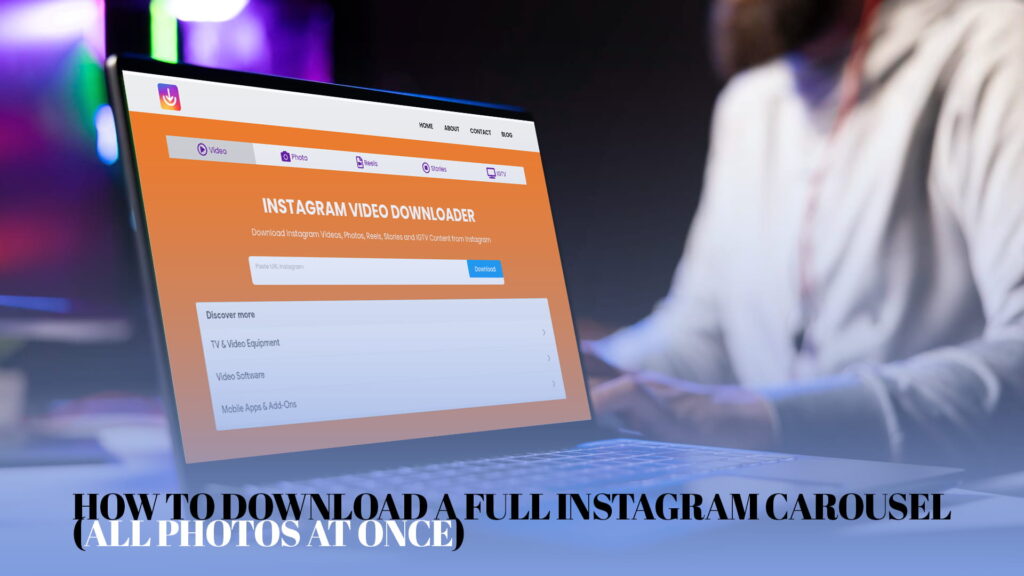
Carousel posts are the ones you swipe through: a single Instagram post holding a stack of photos, sometimes a mix of photos and videos, up to twenty slides deep. They’re everywhere now, used for photo dumps, step-by-step guides, before-and-afters, product shots, and travel sets. And when you want to save one, you run straight into the same wall Instagram puts up everywhere: there’s no download button, and saving all those slides one by one is miserable.
Most people end up screenshotting each slide, swiping, screenshotting again, over and over, ending up with a camera roll full of low-quality captures cluttered with interface bits. For a ten-slide carousel that’s ten screenshots, ten crops, and a result that looks worse than the original every time. There’s a better way, and it saves the whole carousel in one go rather than making you grind through it slide by slide.
This guide covers how to grab every photo and video in a carousel at once, where the files land, how to keep them clean and full-quality, and the honest limits of what works. No app to install, and no Instagram password typed into anything sketchy.
Why Carousels Are Such a Pain to Save
A carousel looks like one post but contains many separate images and videos bundled together. Instagram’s built-in “Save” just bookmarks the whole post inside the app, which means the slides stay locked behind your login, won’t load offline, and vanish if the original gets deleted. It never gives you the actual files.
The screenshot workaround is what most people fall back on, and it’s bad for three reasons. It’s tedious, because you’re repeating the same steps for every slide. It’s low quality, because a screenshot captures your screen, not the source image, so you lose resolution. And it’s messy, because every capture includes bits of the interface (the username, the icons, the caption) that you then have to crop out by hand. Do that ten or twenty times and you’ll understand why people give up halfway.
Pulling the whole carousel through a downloader fixes all three at once. One action, full quality, no interface junk, every slide.
What Counts as a Carousel
Quick clarification, because it affects what you get back. A carousel is any Instagram post with more than one slide, shown by the little dots under the image and the swipe arrow. It can be all photos, all videos, or a mix of both. Instagram allows up to twenty slides in a single carousel now, though most sit somewhere between two and ten.
A good downloader handles all of these, pulling each slide as its own file, photos as images and videos as video files, so a mixed carousel comes back as a tidy set rather than one merged blob. That’s the behavior you want: every slide, separated, in its original format.
What You Need
Almost nothing. A phone or computer, any browser, and an internet connection. You don’t need to install anything, log into Instagram, or pay to save a standard public carousel.
The one hard limit is a private account. If the post lives on a private profile you don’t follow, you can’t access it, and no tool honestly gets around that. Public posts are where this works cleanly.
The Main Method: One Link, Every Slide
Here’s the part that makes this worth it. You copy the carousel’s link once, and a good downloader pulls every slide from it. You don’t link each photo separately, because they all live under the same post URL.
Step 1: Copy the carousel’s link
Open the carousel in Instagram. Tap the three-dot menu at the top-right of the post and choose Copy Link. That single link represents the entire post, all slides included, so you only copy it once no matter how many photos are in there. In a browser, you can copy the post’s URL straight from the address bar instead.
Step 2: Paste it into a downloader
Open a downloader like IG DOWN, which pulls Instagram carousels, photos, videos, Reels, Stories, and IGTV content without asking you to log in. Paste the post link and run it. The tool reads the post, recognizes it as a multi-slide carousel, and pulls back all the images and videos it contains, usually showing them so you can confirm you’ve got the full set before saving.
Because it reads the source files directly, every slide comes back at full quality with no interface clutter. For posts that mix photos and clips, a tool built as a free Instagram video and image downloader online is the right fit, since it handles both formats in the same carousel without choking on the mix.
Step 3: Save all the slides
Download the slides to your device. Depending on the tool, you’ll either get a download button for each slide or the option to grab them together. On a phone they save to your photos or Downloads folder, and on a computer they land in your Downloads folder as separate image and video files. Either way you end up with the complete set, ready to use, in a fraction of the time screenshotting would take.
Making Sure You Actually Got Every Slide
One thing worth checking, because it’s the most common slip. Before you move on, count the slides. If the carousel had eight photos, make sure eight files came down. Occasionally a tool pulls the first slide only, or misses a video in a mixed post, and you don’t notice until later when you’re missing the one image you actually wanted.
The quickest check is the dots under the original post, which tell you how many slides there are. Match that number against what you downloaded. If something’s missing, re-run the link, since a clean re-copy usually fixes a partial pull. Browsing a reliable free Instagram downloader online is worth it if you regularly save big carousels, because the better tools are more consistent about grabbing every slide the first time.
Keeping the Files Clean and Full-Quality
Two things to watch for. The first is watermarks: some downloaders stamp their own logo onto every image, which is especially annoying across a whole carousel because now every slide is branded. The second is compression, where a tool shrinks the files and you lose the quality that made you want to save the set in the first place.
A good downloader avoids both, handing back the original files untouched. If clean output matters to you, the rundown on how to download Instagram videos and photos without a watermark explains what to look for so your whole carousel comes back clean rather than logo-stamped. A fast check after saving: open a couple of the slides full size and compare them to the post. If they look softer or carry a logo, the tool compressed and branded them, and it’s worth switching.
Mixed Carousels: Photos and Videos Together
Plenty of carousels mix formats, a few photos and a video or two in the same post. This is where weaker tools stumble, grabbing the images but skipping the video, or vice versa. When you’re saving a mixed carousel, pay extra attention to the slide count and to the file types you end up with.
If you often deal with mixed content and want one tool that reliably handles everything a post can contain, something built to download videos, photos, Reels, and more is the safer choice, since it’s designed to cope with whatever mix a carousel throws at it rather than handling only one format.
The Manual Fallback
If a downloader won’t pull a particular carousel, usually because the account is private, the post was deleted, or the link got mangled, the manual options aren’t great but they exist. Re-copy the link cleanly and try again first, since that fixes most failures.
If it’s a public post and a tool still won’t cooperate, you’re back to saving slides individually. On a computer you can sometimes open the post, right-click a slide, and save the image, repeating for each one. On a phone, screenshotting each slide and cropping is the last resort. Both are tedious and the phone route costs you quality, which is exactly what the whole one-link method is meant to avoid, so treat these as genuine backups rather than a plan A.
Why This Beats Instagram’s Own “Save”
It’s worth spelling out the difference, because people assume Instagram’s bookmark already does this. It doesn’t. When you tap Save on a carousel, Instagram files the post away in your saved collection, but the images never leave the app. They stay tied to your login, they won’t open without a connection, and the moment the person deletes the post or switches to private, your saved bookmark goes blank. You saved a pointer to the post, not the post itself.
Downloading the carousel gives you the actual files on your device. They open offline, they survive the original being deleted, and you can edit them, print them, or send them anywhere. For anything you genuinely want to keep, a bookmark inside Instagram is not a backup, and treating it like one is how people lose sets they thought were safe. If it matters, download it.
Phone or Computer: Both Work
The one-link method doesn’t care what device you’re on. On a phone, copy the post link from the app and paste it into the downloader in your mobile browser. On a computer, copy the URL from the website and paste it into the same tool. The carousel comes back the same way either time.
That said, a computer is often the smoother place to handle a big carousel. Twenty separate files are far easier to sort, rename, and file into folders with a mouse and a proper Downloads folder than by thumb on a phone, where they scatter through your camera roll. For a quick two-slide save, your phone is fine. For a large set you plan to actually organize and use, the desktop saves you a lot of tidying. Since the same tool runs on both, pick whichever screen suits the job.
Doing This the Right Way
Worth saying plainly. Saving a public carousel for personal use, keeping your own posts, or downloading a set you’ve been given permission to use is reasonable. Taking someone’s carousel and reposting it as your own, or using their photos commercially without asking, isn’t, and downloading the files doesn’t change who made them. Instagram’s rules and ordinary copyright still apply once the images are on your device.
Most people saving carousels are keeping a guide they found useful, backing up their own posts, or collecting reference images, and that’s exactly what this is for.
A Few Habits That Help
Make a folder for each carousel you save, especially bigger ones, so a twenty-slide set doesn’t scatter across your camera roll. Rename the files if you’re keeping them long-term, because image1, image2, and so on tell you nothing three weeks later. Check the audio on any video slides, since a clip occasionally saves silent if the original had licensed music stripped out. And back up anything you truly want to keep, because the point of downloading a carousel is permanence, so a copy in cloud storage or on a drive is cheap insurance.
If you’re saving carousels for work, reference, or a mood board, that folder-per-set habit pays off fast. A named folder with all the slides together beats a chaotic camera roll every single time.
The Short Version
If you scrolled to the bottom, here’s the whole thing. A carousel is one post holding many slides, and Instagram gives you no way to download them. Skip the slide-by-slide screenshotting: copy the post’s link once, paste it into a downloader, and it pulls every photo and video in the carousel at full quality in one go. Check the slide count so you know you got them all, keep the files clean by avoiding watermark-stamping tools, and drop the set into its own folder.
Once you’ve got a downloader you trust, saving an entire carousel stops being a twenty-screenshot chore and becomes a single paste-and-download that takes seconds.