
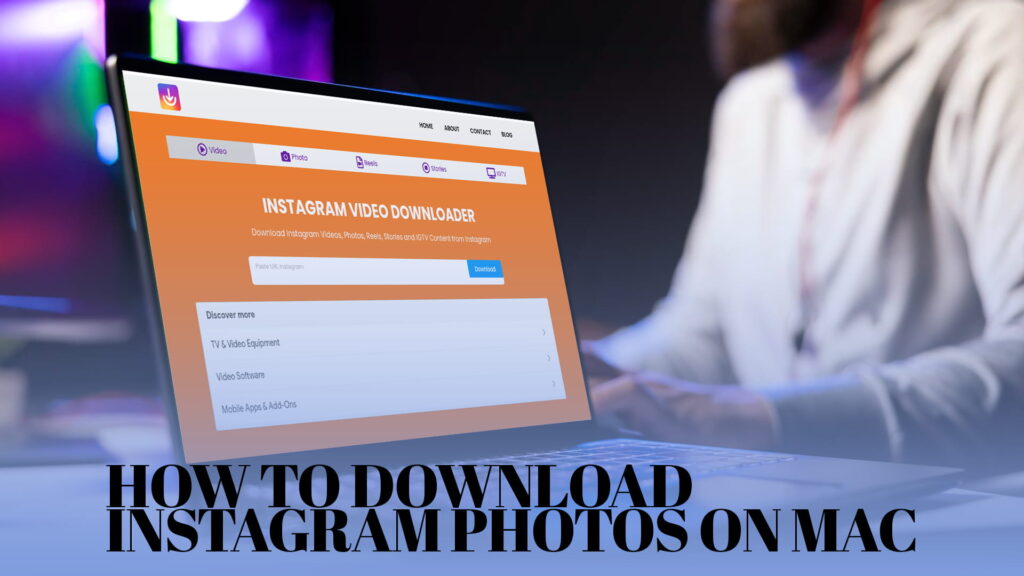
You found a photo on Instagram. Maybe it’s a recipe you want to save, a travel shot that inspired you, or a product image you want to reference later. Whatever the reason, Instagram’s built-in “Save” button only keeps posts inside the app — it doesn’t give you an actual file you can use, share, or store on your Mac.
That’s the gap a lot of people run into. Instagram wasn’t designed to hand you downloadable files. The platform is built for browsing, not exporting. So if you’re on a Mac and you want an actual image file sitting in your Downloads folder, you need a different approach.
This guide covers the most reliable methods to download Instagram photos on Mac in 2026, starting with the one that works best: IGDown — a free online Instagram downloader that handles photos, videos, Reels, Stories, and IGTV content without any software installation.
Why You Can’t Just Right-Click and Save Instagram Photos on Mac
On most websites, right-clicking an image and selecting “Save Image As” works fine. Instagram blocks this. The photos you see on Instagram aren’t loaded as standalone image files your browser can easily grab. They’re embedded inside a complex page structure, and Instagram actively prevents direct image downloads through the browser’s native options.
Some people try to screenshot instead, but that’s a lossy workaround. Screenshots on a Mac are capped at your screen resolution — and a Retina display screenshot still doesn’t match the original quality of a compressed Instagram photo. You also lose the original aspect ratio sometimes, and any text or watermarks in the image get baked in at your screen’s pixel density, not the source file’s.
The right way to get the actual original file — or as close to it as Instagram allows — is to use a purpose-built downloader.
The Fastest Method: Using IGDown to Download Instagram Photos on Mac
IGDown is a browser-based Instagram downloader. Nothing to install. No account required. You paste a link, it pulls the image, and you download it directly to your Mac. The whole process takes about ten seconds once you’ve done it once.
Here’s exactly how it works.
Step 1: Find the Instagram Photo You Want to Download
Open Instagram in your browser — Safari, Chrome, Firefox, it doesn’t matter. Navigate to the photo you want to save. Public profiles work without any extra steps. Private accounts require you to be logged in as a follower, but the download process is the same once you have access.
Step 2: Copy the Post URL
Click on the photo to open it as a full post. Look at your browser’s address bar. You’ll see a URL that looks something like:
https://www.instagram.com/p/ABC123xyz/Click on the address bar to select the full URL, then copy it — Command+C on Mac.
Step 3: Open IGDown
Go to https://igdown.org/ in a new tab. You’ll see a clean input field at the top of the page. Paste the URL you copied — Command+V — then hit the Download button.
Step 4: Download the Image to Your Mac
IGDown will fetch the post and show you a preview of the image. Below the preview, there’s a download button. Click it and your Mac’s browser will prompt you to save the file. It goes to your Downloads folder by default, or wherever you’ve set your browser to save files.
That’s the whole process. No watermarks, no login required, no app to install or update.
Downloading Multiple Photos from a Carousel Post
Instagram carousels are posts that contain multiple photos or a mix of photos and videos. When you paste a carousel link into IGDown, it detects all the media inside the post and gives you the option to download each image individually.
You’ll see thumbnails of every photo in the set, each with its own download button. Click the ones you want, or download them all. This is useful when someone posts a before-and-after series, a travel album, or a multi-image tutorial and you want the full set.
What Else Can IGDown Download?
While this guide focuses on photos, it’s worth knowing IGDown handles more than just images. If you’ve been looking for a way to save other types of Instagram content, the same tool covers all of it:
- Instagram Videos — Download full-resolution videos from any public post
- Reels — Save short-form Reels to your Mac without watermarks
- Stories — Download Stories before they disappear (you need to be logged in as a follower for private accounts)
- IGTV — Save longer-form IGTV videos in high quality
For a deeper look at what IGDown can do across all these content types, the blog post Instagram Downloader: Download Video, Photos, Reels & More breaks it down in detail.
Downloading Instagram Photos on Mac Without Watermarks
One thing that frustrates people about third-party downloaders is watermarks. Some tools stamp their logo or branding across every image you download, which makes the file practically unusable.
IGDown doesn’t do this. Every photo you download comes out clean — exactly as it appeared on Instagram, with no overlay, no branding, and no alteration to the image itself. If the original photo had a watermark added by the creator (some brands do this), that will still be there since it’s part of the original file. But IGDown adds nothing of its own.
The article Free Instagram Downloader Without Watermark goes into this in more detail if you want to understand why watermark-free matters for how you use downloaded images.
Downloading Instagram Photos on Mac Using Safari vs Chrome
The browser you’re using on your Mac doesn’t change how IGDown works — it works the same in Safari, Chrome, Firefox, and Edge. But there are small differences in where your downloaded files land and how the download prompt behaves.
Safari: Files download to your Downloads folder by default. Safari sometimes opens certain file types (like JPEGs) directly in the browser tab instead of saving them. If that happens, right-click the image and choose “Save Image As” to save it as a file.
Chrome: Chrome downloads directly to your Downloads folder or asks where to save, depending on your settings. It handles media file downloads smoothly and rarely opens images in-tab.
Firefox: Similar to Chrome. Firefox will save the file directly without any preview behavior.
If you’re a Safari user and finding the download step slightly awkward, switching to Chrome just for this task is the simplest fix.
Can You Download Instagram Photos on Mac Without an App?
Yes, and honestly, you probably don’t need an app. The main argument for a dedicated app is convenience — some Instagram downloaders have Mac apps or browser extensions that let you download right from the Instagram page with a single click. That’s nice in theory.
In practice, browser extensions for Instagram downloading tend to be unreliable. Instagram regularly updates its platform, and extensions frequently break after updates and stay broken until the developer patches them. They also require broader browser permissions than a web tool does, which can be a privacy concern.
IGDown is web-based, so there’s nothing to install, nothing to update, and nothing sitting in your browser with access to your sessions. You visit the site when you need it, paste the link, download the photo, and close the tab.
What About Private Instagram Accounts?
If the account is private, things work differently. IGDown can still help, but you need to be following the account and logged into Instagram in your browser first.
Here’s what changes:
- Log into Instagram in your browser (the same browser you’ll use IGDown in)
- Navigate to the private account’s post
- Copy the URL from the address bar
- Paste it into IGDown
Because you’re logged in and have follow access, Instagram will serve the content to your browser session, and IGDown can fetch it. If you’re not a follower, the photo isn’t accessible to you in any browser — and IGDown (or any other tool) can’t pull content that Instagram won’t serve.
Downloading Instagram Profile Photos on Mac
Profile pictures on Instagram are circular thumbnails that don’t link to a full post. They’re also intentionally displayed at low resolution in the UI, even if the account holder uploaded a higher-resolution image.
IGDown supports profile photo downloads separately. Instead of copying a post URL, you’d copy the profile URL:
https://www.instagram.com/username/Paste that into IGDown, and it will fetch the profile photo at the highest available resolution. This is useful if you’re building a contact card for someone, maintaining an influencer database, or just want to save a high-quality version of someone’s profile image.
Downloading Instagram Photos for Personal Use vs. Commercial Use
This is worth addressing clearly. Downloading Instagram photos through any method doesn’t give you rights to use them in any way you want. The images are owned by the person who posted them or the rights holders they licensed the content from. Instagram’s terms of service permit you to view content, not to repurpose it.
For personal, non-commercial use — saving a photo you love, archiving your own content, keeping a reference image — downloading is generally fine and accepted practice. You’re not distributing it, selling it, or passing it off as your own.
For commercial use — putting someone else’s Instagram photo on your website, in a marketing campaign, or in any paid context — you need permission from the creator. A download tool doesn’t change that calculus.
How to Download Your Own Instagram Photos to Your Mac
If you’re trying to save your own Instagram photos — which is a very common need, especially for people who posted photos over the years and now want a local backup — there are two good approaches.
Option 1: Instagram’s Data Download Tool Instagram has a built-in data export feature. Go to Settings in the Instagram app or on the web, look for “Your Activity” or “Privacy and Security,” and find the option to download your data. Instagram will compile all your posts, stories, and account data into a ZIP file and email you a link to download it. This can take anywhere from a few minutes to a couple of hours depending on how much content you have.
Option 2: IGDown for Individual Posts If you just want specific photos — not your full archive — IGDown is faster. Pull up each post, copy the URL, and download the image. For a handful of photos, this is quicker than waiting for Instagram’s data export.
Troubleshooting: When IGDown Can’t Find the Photo
Sometimes a link doesn’t work the way you’d expect. Here are the most common reasons:
The account is private and you’re not following it. There’s no workaround here. Private content isn’t accessible to non-followers, regardless of what tool you use.
The post has been deleted. If the content was removed by the creator or by Instagram, the URL no longer resolves to anything. IGDown can’t retrieve content that doesn’t exist anymore.
You copied the wrong URL. Make sure you’re copying the URL from a specific post (containing /p/ in the URL) rather than from someone’s profile page, explore page, or a search result. Those URLs point to different types of pages.
Instagram is experiencing issues. Instagram has outages from time to time. If downloads suddenly stop working across multiple different posts, check whether Instagram itself is accessible normally.
Why IGDown Is the Most Reliable Instagram Photo Downloader for Mac Users in 2026
There are dozens of Instagram downloaders online. The difference with IGDown is consistent reliability. A lot of tools in this space go down regularly, show intrusive ads, redirect you to unrelated sites, or quietly expire after Instagram updates its API. IGDown has remained stable, fast, and clean.
For Mac users specifically, the web-based approach is ideal because:
- No Silicon-vs-Intel compatibility issues (browser-based tools run the same on any Mac)
- No notarization or Gatekeeper warnings about unverified apps
- No App Store restrictions
- Works on macOS Ventura, Sonoma, and any version that runs a modern browser
If you’re regularly downloading Instagram content — for a content research workflow, a mood board, archiving your own posts, or anything else — bookmarking https://igdown.org/ and learning the copy-paste workflow pays off quickly. It becomes second nature after a few uses.
For more context on how the tool works and what makes it different from other downloaders, the IGDown overview article covers the full picture.
Quick Recap: Steps to Download Instagram Photos on Mac
- Open Instagram in any browser on your Mac
- Go to the post containing the photo you want
- Copy the post URL from the address bar
- Go to IGDown.org
- Paste the URL into the input field
- Click Download
- Save the image to your Mac
No app. No account. No watermark. Works on Safari, Chrome, Firefox, and any other modern browser on Mac.
If you need to download videos alongside photos, the free Instagram video and image downloader guide walks through that process in the same straightforward way.