
You’re scrolling Instagram on your iPhone, you hit a video you want to keep, and your thumb goes straight for a save-to-phone button that doesn’t exist. Instagram lets you bookmark the post, sure, but that just tucks it away inside the app. It never touches your Camera Roll, it won’t play if your connection drops, and it vanishes the moment the account goes private or the video gets deleted.
If you actually want the video in your Camera Roll, sitting in Photos next to your own clips where you can play it offline, text it to someone, or drop it into an edit, you have to take a slightly different route. The good news is it’s easy once you’ve seen it done. The slightly annoying news is that iPhones add one small step that Android phones don’t, and that step is exactly where most people get stuck.
I’ll walk through the whole thing, explain the Files-app detour so it makes sense instead of confusing you, and cover the fallbacks for the odd video that won’t behave. No App Store download required, and no typing your Instagram password into anything questionable.
Why iPhone Makes You Take an Extra Step
On Android, a downloaded video usually drops straight into the Gallery. On iPhone, Safari can’t write directly to your Camera Roll. Files you download in the browser land in the Files app first, in a Downloads folder, and then you move them into Photos yourself with one extra tap.
It’s not a bug and it’s not the downloader’s fault. It’s just how iOS handles downloads. Once you know the file is waiting in Files and that getting it into your Camera Roll is a single “Save Video” tap away, the whole process stops feeling broken and starts feeling routine.
Before going further, the usual reminder, because it genuinely matters: only save videos you have the right to keep. Your own content, clips you’ve been given permission to use, or public videos for personal reference are fine. Reposting someone else’s video as your own, or using it commercially without asking, isn’t, and saving the file to your phone doesn’t change that.
Why Save Instagram Videos to Your Camera Roll at All
A few honest reasons. Offline access is the big one. A video in your Camera Roll plays on a plane, on the subway, anywhere with no signal, while a bookmarked Instagram post just spins. Permanence is another. Creators delete things, accounts go private, posts get archived, and a bookmark to a deleted video is worth nothing. A file on your phone is yours.
There’s also the simple fact that the Camera Roll is where everything else lives. If you want to send a clip in Messages, add it to a shared album, set it as a Live Photo, or pull it into an editing app, it needs to be in Photos first. Bookmarks inside Instagram can’t do any of that.
What You Need
Not much. An iPhone or iPad, a browser (Safari is built in and works fine, though Chrome on iOS works too), and an internet connection. You don’t need to be logged into Instagram on the web to save a public video, you don’t need to jailbreak anything, and you don’t need to pay for a standard clip.
The one hard stop is a private account. If the video lives on a private profile, none of this works, and that’s by design.
The Main Method: Copy the Link, Paste It, Save to Photos
This is the route I use because it works without installing an app and the whole thing takes well under a minute once you’ve done it once.
Step 1: Copy the video’s link in Instagram
Open the Instagram app and go to the video. Tap the three dots at the top-right of the post (on Reels, the dots sit on the right-hand action bar). A menu slides up from the bottom. Tap Copy Link, and Instagram flashes a small “Link copied” confirmation.
If you happen to be browsing Instagram in Safari instead of the app, the link is already in the address bar, so you can copy it from there.
Step 2: Paste it into a downloader
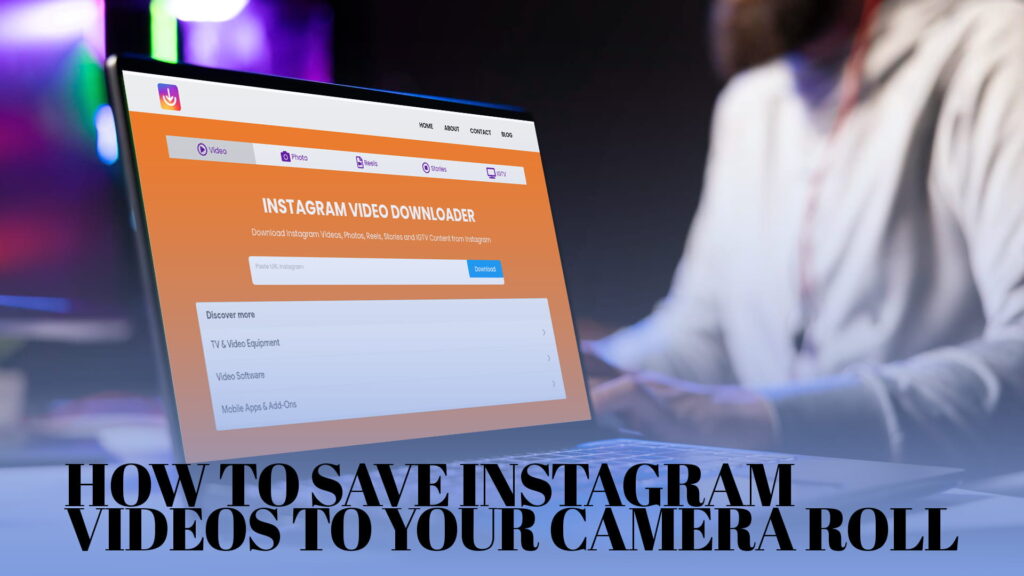
Open Safari and go to a web downloader like IG DOWN, which pulls Instagram videos, photos, Reels, Stories, and IGTV clips without making you log in. Tap the input box, paste the link, and tap the download button next to it.
It reads the link and pulls back the video in a second or two, usually with a preview and a download button underneath. The page works the same on an iPhone as it does on an iPad, just with more room to breathe on the bigger screen. If you want a fuller walkthrough that also covers Reels, the step-by-step on how to download Instagram videos and Reels online covers the same flow in more detail.
Step 3: Download the file (it goes to Files first)
Tap Download. Safari asks whether you want to download the file, you confirm, and a little download arrow appears at the top of Safari. The video saves to the Downloads folder in your Files app. This is the iOS step everyone trips on, so don’t go hunting for it in Photos yet. It isn’t there. It’s in Files.
Step 4: Move it from Files into your Camera Roll
Open the Files app, tap Browse, then Downloads (on iCloud Drive or “On My iPhone,” depending on your setup). You’ll see the video you just saved. Tap it to open, then tap the Share icon in the corner, the square with the arrow pointing up. In the share sheet, tap Save Video.
That’s the moment it lands in your Camera Roll. Open Photos and the video is in your Recents, ready to play, send, or edit. No watermark across it, no login, no expiry hanging over it.
It sounds like a lot written out, but it’s really four taps after the download: open the file, tap Share, tap Save Video, done.
Getting Clean Videos Without a Watermark
Worth knowing before you save a pile of these: some downloaders re-encode the video and stamp their own logo onto it. You end up with a watermark you never asked for and a file that looks a touch worse than the original.
A good downloader pulls the source video straight through and leaves it alone, which is what you want for anything you plan to keep or reuse. If you’ve been burned by watermarked downloads before, the rundown on an Instagram video downloader without a watermark explains how to tell the clean tools from the ones that brand your clips.
Quick quality check after saving: open the video in Photos and look at it full screen. If it’s noticeably softer or more pixelated than it looked in Instagram, it got compressed somewhere along the way. The clean source file should look the same as it did in the app.
Reels, Stories, and Longer Videos Work the Same Way
You don’t need a different process for each format. Reels save exactly like feed videos, the only difference being where you tap to copy the link, since the menu sits on the side rather than the top.
Stories are the exception because they disappear after 24 hours, so timing is everything. If you want to keep a Story, yours or one you’ve got permission to save, grab the link while it’s still live. Once it expires there’s nothing left to pull. IGTV and longer videos download the same way, they just take a few extra seconds because the files are bigger.
If you mostly want to grab both videos and photos from a profile in one place, browsing a free Instagram video and photo downloader online is worth it, since some tools handle mixed media more smoothly than others.
A Faster Route: the Shortcuts App
If you save Instagram videos constantly, the copy-paste-Files dance gets old. iPhone’s built-in Shortcuts app can collapse it into a single tap. There are shortcuts that take a copied Instagram link, fetch the video, and save it straight to Photos without the Files detour. You add the shortcut once, then run it from the share sheet whenever you copy a link.
It takes a little setup and you have to trust the shortcut you install, so it’s more of a power-user move than a first-timer one. But if you’re saving clips daily, the time it saves adds up fast. For most people, the browser method is plenty, and you can always graduate to a shortcut later.
Picking a Downloader That Won’t Waste Your Time
Not every tool deserves a tab. Some bury you in pop-ups, some break every other week, some quietly cap quality. On iPhone, where Safari already adds a step, the last thing you want is a slow, ad-stuffed site dragging the rest out.
What I look for is simple: it loads fast without throwing redirect ads at you, and it returns the full-quality file instead of a shrunken copy. If speed and a clean experience matter to you, the breakdown of an Instagram downloader that’s fast and secure covers what separates the dependable tools from the ones that make you close three pop-ups before anything happens.
The Fallback: Screen Recording (Built Into Your iPhone)
Sometimes a link just won’t pull. The usual reasons are a private account, a video deleted between copying and pasting, or a link that got mangled on the way over. Re-copy it cleanly and try again first, because that clears up most failures.
If the video is public but a downloader still won’t grab it, your iPhone can record the screen, and the feature’s built right in.
First, add it if you haven’t: go to Settings > Control Center and add Screen Recording. Then open Control Center (swipe down from the top-right on newer iPhones), tap the record button, wait for the three-second countdown, switch to Instagram, and play the video full screen with sound on. When it’s done, open Control Center again and tap the red record button to stop. The recording saves straight to your Camera Roll.
You’ll want to trim the start and end afterward in Photos, which takes a few seconds. Screen recording is clunkier and the quality is whatever your screen shows rather than the source file, so I treat it as a genuine last resort. But for a public clip a downloader chokes on, it always works.
A Few Habits Worth Picking Up
After saving a lot of these, the small stuff turns out to matter.
Make an album. Once a video is in your Camera Roll, drop it into a named album like “Saved IG” so it isn’t buried among screenshots and selfies. Photos lets you create albums and add clips in a couple of taps.
Mind your iCloud storage. Videos aren’t huge individually, but a hundred saved clips add up, and if you’re on the free iCloud tier they’ll eat into it. Either keep an eye on it or offload older ones to a computer.
Check the audio. Now and then a download saves silent, usually because the original had licensed music that got stripped out. If sound matters for your use, play it back before you rely on it.
Delete the Files copy if you want. After you’ve saved a video to Photos, the original is still sitting in your Files Downloads folder taking up space. Clear it out now and then so it doesn’t pile up.
Doing This the Right Way
Worth repeating plainly because it matters. Saving a video to your own Camera Roll for personal use, keeping your own content, or downloading something you’ve been given permission to use is reasonable. Taking a creator’s video and passing it off as yours, or using it commercially without asking, isn’t, and the fact that the file now lives in your Photos doesn’t make it okay. Instagram’s rules and ordinary copyright still apply once it’s on your phone.
Most people reading this just want to keep a clip they liked or pull their own content off the platform, and that’s exactly the spirit this is written for.
The Short Version
If you jumped to the bottom, here’s the whole thing. Copy the video’s link in Instagram using the three-dot menu. Paste it into a web downloader. Tap download, and the file saves to your Files app. Open Files, tap the video, tap Share, then Save Video, and it lands in your Camera Roll.
That’s all there is to it on an iPhone. The Files step feels like a detour the first time, but once you know to expect it, saving Instagram videos to your Camera Roll becomes a habit you knock out in under a minute without thinking twice.