
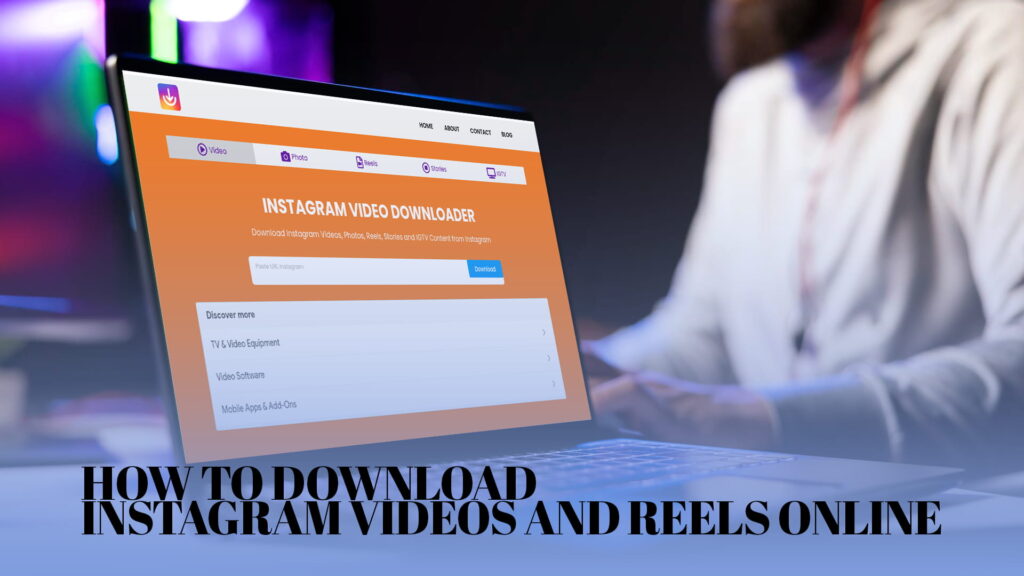
If you have ever scrolled through Instagram and seen a Reel or video you really wanted to save, you already know the problem. Instagram does not give you a built-in option to download most content. You can bookmark posts, sure. But actually saving a video to your phone or computer? That is a different story.
This guide walks you through exactly how to do that using IG DOWN, a free online tool at IGDown.org. No app installation. No sign-up. No cost. Just paste a link and get your video.
Why Instagram Does Not Let You Download Videos Easily
Instagram is a social media platform. Its job is to keep you on the platform as long as possible. Downloading content and watching it offline goes against that goal, which is why the app does not include a download button for most content types.
There are a few exceptions. Instagram allows you to save your own Reels and posts to your camera roll through the share menu. But when it comes to videos posted by other accounts, photos shared in Stories, or IGTV videos, the platform locks those down.
This is not a bug. It is a deliberate design choice. And it is the reason tools like IG DOWN exist — because people genuinely need a way to save content they find useful, entertaining, or worth keeping.
What Is IG DOWN?
IG DOWN is a free online Instagram downloader. You can find it at IGDown. It works directly in your browser, so there is nothing to install.
Here is what IG DOWN supports:
- Instagram Videos (regular feed posts with video)
- Instagram Reels (short-form videos)
- Instagram Photos (single images and carousels)
- Instagram Stories (content from user story highlights and active stories)
- IGTV (longer-form video content)
That covers basically everything you would want to save from Instagram. Whether it is a cooking tutorial, a workout Reel, a travel photo, or a long-form IGTV interview, IG DOWN handles it.
The tool is free to use. There are no hidden charges, no registration walls, and no limits that require you to upgrade to a paid plan.
How to Download Instagram Videos Using IG DOWN
The process is simple. Here is how it works, step by step.
Step 1: Open Instagram and Find the Video You Want
Go to Instagram on your phone or in a browser. Find the video, Reel, photo, or Story you want to download. This works on both the Instagram mobile app and the Instagram website.
Step 2: Copy the Post Link
On the Instagram mobile app: Tap the three dots (⋯) at the top right corner of the post. A menu will appear. Tap “Copy Link.” That’s it — the link is now in your clipboard.
On Instagram’s website (desktop or mobile browser): Click the three dots on the post. Select “Copy Link.” Same result.
For Stories: Open the Story, tap the three dots at the bottom right, and select “Copy Link.”
For IGTV: Open the IGTV video, tap the three dots, and tap “Copy Link.”
Step 3: Go to IGDown
Open a new browser tab and go to IGDown. The homepage will load quickly. You will see a search or input box in the center of the page.
Step 4: Paste the Link
Tap or click inside the input box and paste the link you copied from Instagram. On mobile, long-press the text field and tap “Paste.” On desktop, right-click and select “Paste,” or use Ctrl+V (Windows) or Cmd+V (Mac).
Step 5: Hit the Download Button
After pasting the link, tap or click the Download button. IG DOWN will process the link and fetch the content from Instagram.
Step 6: Save the File to Your Device
Once the tool fetches the content, you will see a download option appear. Tap or click to save the file. On mobile, this typically goes to your Photos or Downloads folder. On desktop, it saves to wherever your browser is set to save downloads (usually the Downloads folder).
That is the whole process. From copy to saved file, it takes under a minute.
Downloading Instagram Reels Specifically
Reels are probably the most popular type of content people want to download right now. They are short, fast, and often genuinely useful — tutorials, recipes, fitness tips, comedy clips. The problem is that Instagram makes saving Reels from other accounts nearly impossible without a third-party tool.
IG DOWN handles Reels the same way it handles regular videos. Copy the Reel link, paste it into IGDown.org, and download. The quality IG DOWN fetches is whatever Instagram has available, which in most cases is the original upload quality.
One thing worth knowing: Reels that are set to “private” by the account owner cannot be downloaded by anyone who does not follow that account. IG DOWN can only access publicly available content. If a Reel is private and you are not following that account, the tool will not be able to fetch it.
Downloading Instagram Stories
Stories disappear after 24 hours, which makes saving them more time-sensitive than other content types. IG DOWN supports Story downloads for public accounts.
To download a Story:
- Open the Story on Instagram
- Tap the three dots at the bottom right
- Select “Copy Link”
- Paste the link into IGDown
- Download the file
For Story Highlights (Stories that the account has saved to their profile permanently), the same process applies. Highlights stay on the profile until the owner removes them, so there is a bit more time to work with.
Again, private account Stories cannot be accessed unless you follow that account and the tool is used while you are logged in — which IG DOWN does not require or support, since it only processes public links.
Downloading IGTV Videos
IGTV is Instagram’s format for longer videos. Some creators post extended tutorials, full interviews, and behind-the-scenes content through IGTV that can run anywhere from a few minutes to an hour.
Downloading IGTV with IG DOWN works the same way:
- Open the IGTV video on Instagram
- Tap the share icon or three dots
- Copy the link
- Paste it into IGDown
- Download
IGTV videos tend to be larger files than regular posts or Reels, so the download might take slightly longer depending on your internet connection.
Downloading Instagram Photos
If you want to save a photo post — a single image or a carousel with multiple images — IG DOWN handles that too. The steps are identical to downloading a video. Copy the post link, paste it into IGDown, and the tool will pull the image files for download.
For carousel posts with multiple photos, IG DOWN will typically give you access to all the images in the carousel, not just the first one. This is useful for posts where someone shares a set of photos from a trip or a multi-image tutorial.
Does IG DOWN Work on Mobile?
Yes. IGDown is designed to work on any device with a web browser. That includes:
- iPhone and iPad (Safari, Chrome, Firefox)
- Android phones and tablets (Chrome, Firefox, Samsung Internet)
- Windows laptops and desktops
- Mac computers
- Chromebooks
There is no separate app to install. The website is mobile-friendly and the process is the same on any device. Just open IGDown in your phone’s browser, paste the link, and download.
One small note for iPhone users: when you download a video through Safari, it may open in a new tab instead of downloading directly. In that case, long-press the video and tap “Save to Photos” or “Download Linked File” to save it to your device.
Is IG DOWN Free?
Yes. IG DOWN is completely free. There is no premium version, no subscription, and no cap on how many files you can download. You do not need to create an account or provide an email address.
The tool generates revenue through advertising on the website, which keeps the core service free for users.
Is It Safe to Use IG DOWN?
This is a fair question to ask about any online tool.
IG DOWN processes the public URL you provide and fetches the media from Instagram’s servers. You are not uploading files to the tool — you are giving it a link. The tool does not ask for your Instagram username, password, or any personal account information.
A few things to keep in mind when using any online downloader:
- Never use a tool that asks for your Instagram login credentials. No legitimate downloader needs your password.
- IG DOWN only works with public Instagram content. It does not require you to log in.
- Make sure you are on the correct website, IGDown, before using it.
As long as you are on the right site and not sharing any personal account details, the tool is safe to use.
What About Copyright?
This is worth talking about clearly.
When you download a video from Instagram using IG DOWN, you are downloading someone else’s creative work. That work may be protected by copyright. Downloading it for personal viewing — watching it offline, saving something for your own reference — is generally considered fair use in most countries.
Where it gets more complicated is redistribution. If you download someone’s video and then re-upload it to YouTube, TikTok, your own Instagram, or any other platform without their permission, that is copyright infringement. It does not matter that a tool made it easy to download — the responsibility for how the file is used lies with you.
The safe, respectful approach:
- Download for personal use only
- Do not re-upload or redistribute without the creator’s explicit permission
- If a creator’s content inspires you, share the original post rather than a copy
IG DOWN is a tool. How it gets used is up to the person using it.
When Would You Actually Need to Download an Instagram Video?
This is worth spelling out because the use cases are more practical than people might assume.
Saving tutorials for offline use. A lot of useful how-to content lives on Instagram — home repair, cooking, fitness, language learning. If you are about to go somewhere without internet access (a cabin, a flight, a remote worksite), downloading videos ahead of time means you can still access them.
Keeping a record of your own content. If you are a creator and you have been posting to Instagram for a while, your posts are vulnerable to being lost if your account ever gets hacked, suspended, or if Instagram itself changes its policies. Downloading your own content is a backup strategy.
Saving content before it disappears. Stories vanish after 24 hours. An account could be deleted or set to private at any time. If there is a video you genuinely value, saving it when you see it makes sense.
Reference and research. Journalists, marketers, researchers, and educators sometimes need to save social media content as reference material. Downloading is more reliable than screenshotting.
Watching on a different device. Maybe you found a Reel on your phone but want to watch it on a TV or share it in a group chat where attaching a file is easier than sharing a link.
None of these are unusual reasons. Most people who use a tool like IG DOWN are doing so for entirely ordinary purposes.
Common Problems and How to Fix Them
The link is not working. Make sure you copied the full link and not just part of it. Instagram links usually look like: https://www.instagram.com/reel/XXXXXXXXXX/ or https://www.instagram.com/p/XXXXXXXXXX/. If the link is incomplete, the tool cannot fetch anything.
“Content not available” or similar error. This usually means the account is private or the post has been deleted. IG DOWN can only access publicly available content. If the account or post is private, there is no workaround.
The video quality seems lower than expected. IG DOWN downloads the highest quality version that Instagram makes available in the public-facing version of the post. If the upload itself was low quality, the download will reflect that.
The file downloaded but there is no sound. Some Instagram videos are originally posted without audio (slideshows, silent clips). If the original had no sound, the downloaded file will not have sound either.
Download is very slow. This is usually a connection speed issue on your end. IGTV videos are large files, and slower connections will take longer. Try again when you have a stronger signal.
Tips for Getting the Best Results
A few habits that make the process smoother:
Copy the link directly from the post, not from a forwarded message. Sometimes when links get shared through DMs or messaging apps, they get shortened or modified. The original post URL works more reliably.
Use a stable connection. Especially for IGTV or long videos, a stable WiFi connection is more reliable than mobile data for downloads.
Bookmark IGDown.org. If you find yourself using it regularly, keeping a bookmark saves time. You will not have to search for it every time.
Download while the content is still live. If you are trying to save a Story, do not wait. They disappear after 24 hours and you cannot recover them after that.
How IG DOWN Compares to Other Methods
Some people try to screen-record Instagram videos as an alternative to downloading them. Screen recording works, but it has obvious limitations — the quality is lower (you are recording the screen, not the original file), and for audio it depends entirely on your device’s microphone settings. You also capture anything else visible on your screen, like notifications.
Downloading through IG DOWN gives you the actual media file in its original quality. No screen bleed, no watermarks from screen recording tools, no visible notifications in the corner.
Other Instagram downloaders exist. Some require you to create an account. Some push you toward a paid plan after a few downloads. Some are cluttered with aggressive advertising or redirect you through suspicious pages. IG DOWN keeps it clean — paste a link, get a file.
Final Thoughts
Instagram is not going to add a proper download button anytime soon. That would reduce time spent on the app, and reducing time on the app is the last thing any social media platform wants to do.
In the meantime, IG DOWN fills that gap in a way that is fast, free, and works on any device. Whether you are saving Reels, downloading a Story before it disappears, archiving your own content, or keeping a tutorial for offline reference, the process is the same: copy the link, paste it into IG DOWN, and download.
No app, no account, no charge. Just a tool that does what you need it to do.